Month: September 2026
Developer
- Home
- >
- Developer
Getting Started with API
Developer is where you create and manage the API keys used to send WhatsApp messages from your own systems.
Creating a key
Click + New API Key to generate a new key.
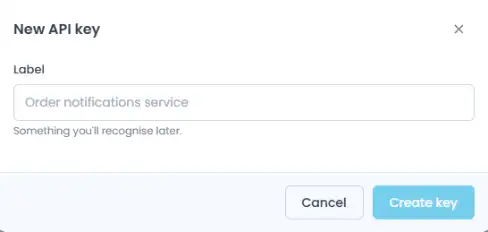
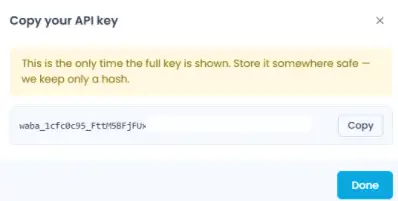
After you create it, your full key is shown once:
Click Copy to copy it to your clipboard, then Done once you’ve saved it somewhere safe. If you lose it, you can’t retrieve it again, you’ll need to revoke the key and create a new one.
Your API keys
The table lists every key created for your workspace:
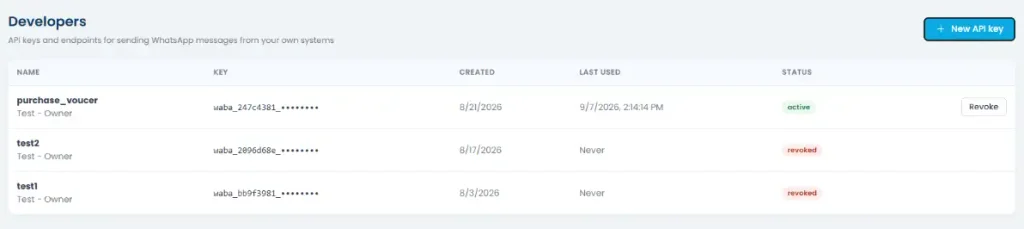
| Column | What it shows |
| Name | What you called the key when you created it |
| Key | The key value (partially hidden for security) |
| Created | When the key was generated |
| Last Used | The most recent time it was used to make a request |
| Status | Active or Revoked |
For any Active key, click Revoke at the end of the row to disable it. Once revoked, a key can’t be used again, you’ll need to generate a new one.
API documentation
Below the key table, you’ll find a link to the full API Docs, covering authentication, endpoints, rate limits, and everything else you need to integrate with the API.
Settings
- Home
- >
- Settings
Personal
Update your own account details.
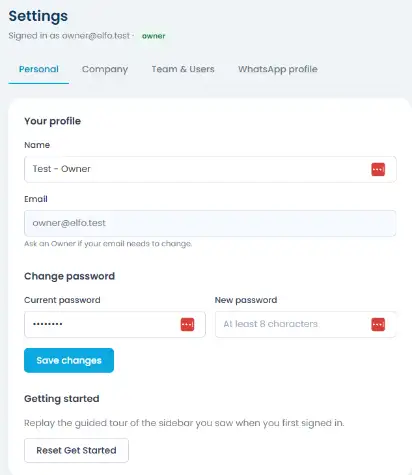
Name: editable.
Email: read-only here, if it needs to change, ask an Owner.
Change password: enter your current password and a new one (at least 8 characters).
Company
Set your workspace-wide company details.
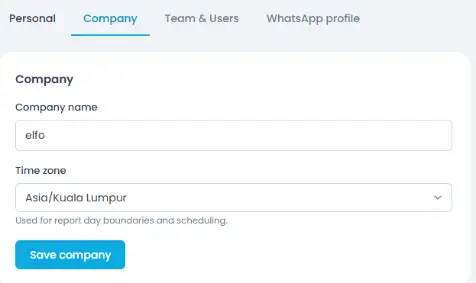
Company name
Time zone: used for report day boundaries and scheduling, so make sure it matches where your team actually operates.
Team & User
This is where Owners (and, in scope, Managers) manage who has access to the workspace.
Managing users
The user list shows everyone’s name, email, role, status (active or disabled), and when they last logged in.
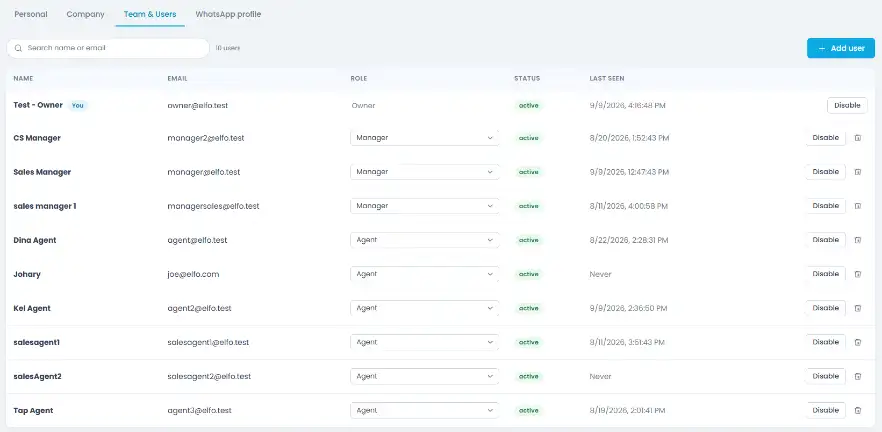
Click + Add user to invite someone by email.
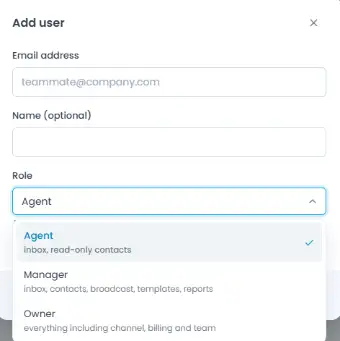
Use the Role dropdown next to their name to set them as Owner, Manager, or Agent. A workspace can have more than one Owner.
Click Disable to revoke a user’s access without deleting their record, or the trash icon to remove them entirely.
Managing teams
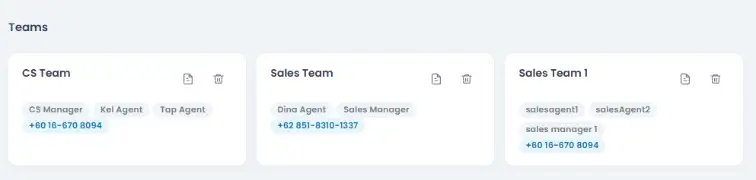
Further down, the Teams section lists every team as a card, showing its members and the WhatsApp channel(s) assigned to it.
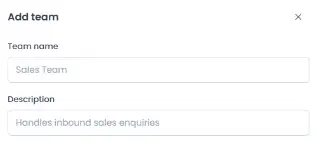
Step 1: Name your team
Click + Add team, then give it a Team name and an optional Description.
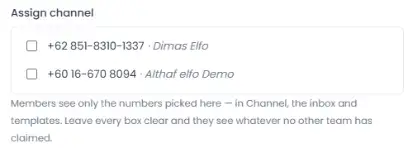
Step 2: Assign a channel
Pick which connected number(s) this team can see. Members only see the numbers checked here, across Channel, Inbox, and Templates.
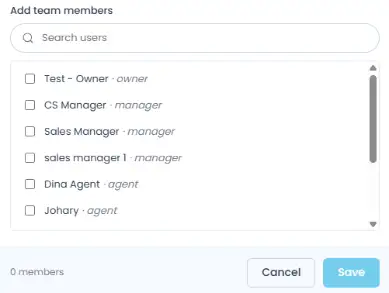
Step 3: Add members
Search and check the users who belong to this team and click Save
WhatsApp profile
Manage the public-facing profile customers see on WhatsApp.
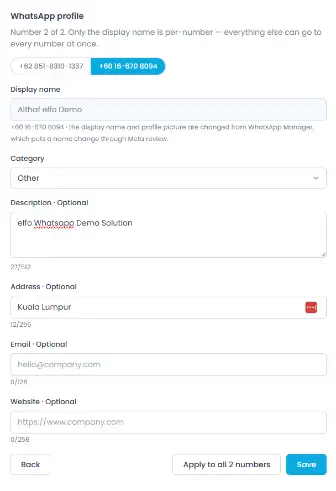
If your workspace has more than one connected number, use the selector at the top to switch between them.
Display name is per-number, changing it goes through WhatsApp Manager and requires Meta’s review, same as changing it directly on Meta’s side.
Category, Description, Address, Email, and Website are shared fields, they can apply to every number at once.
Use Apply to all numbers to push the same details everywhere, or Save to update just the number you’re currently viewing.
Billing
- Home
- >
- Billing
Getting started with Billing
Billing shows your estimated WhatsApp usage cost, broken down by country and pricing category.
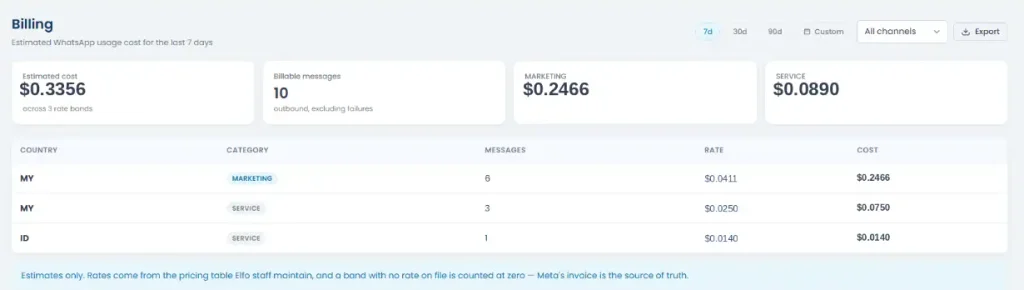
Use the date range buttons (7d, 30d, 90d, or Custom) to scope the period, and Export to download the breakdown. By default the data covers All channels, but you can filter it down to a specific connected number if you only want to see that one.
At the top, you’ll see:
Estimated cost: total across all rate bands for the period
Billable messages: outbound messages sent, excluding failures
One card per pricing category with billable messages in the period (e.g. Marketing, Utility, Authentication, or Service), showing that category’s cost
Below that, a table breaks the same data down by Country and Category, showing message count, rate, and cost for each combination.
These numbers are estimates only. Meta’s own invoice is the source of truth for what you’re actually billed.
Channels
- Home
- >
- Channels
Getting started with Channel
Channel is where you connect and manage the WhatsApp numbers your workspace sends from.
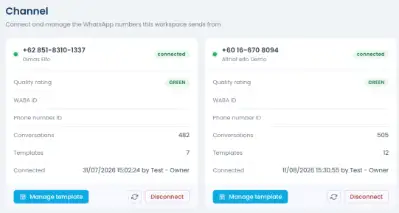
If no number is connected yet, you’ll see an empty state prompting you to connect one. Once connected, each number shows as a card with:
Its Quality rating (Green, Yellow, or Red)
Its WABA ID and Phone number ID
How many Conversations and Templates it has
When it was connected, and by whom
From each card, you can Manage template, Refresh its data, or Disconnect the number.
Connecting a channel
Click + Connect a number. You’ll see two options:
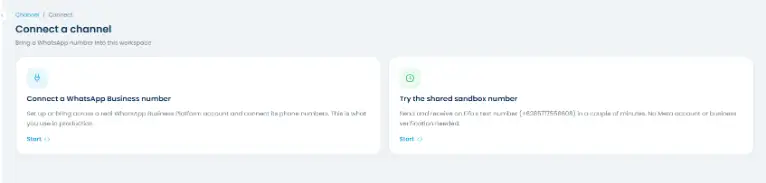
Connect a WhatsApp Business number: set up or bring across a real WhatsApp Business Platform account. This is what you’ll use in production.
Try the shared sandbox number: send and receive on Elfo’s test number in a couple of minutes. No Meta account or business verification needed, useful for exploring the platform before you connect your own number.
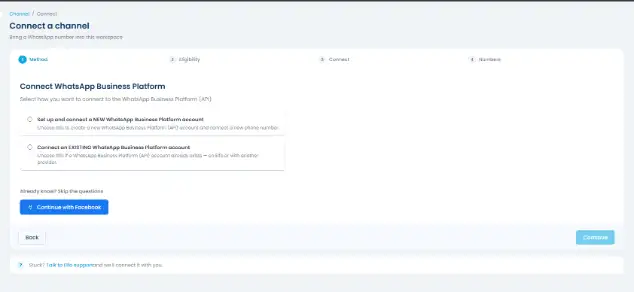
Step 1: Choose your method
If you choose to connect a real number, pick whether you’re setting up a NEW WhatsApp Business Platform account or connecting an EXISTING one, or skip straight to Continue with Facebook if you already know what you’re doing.
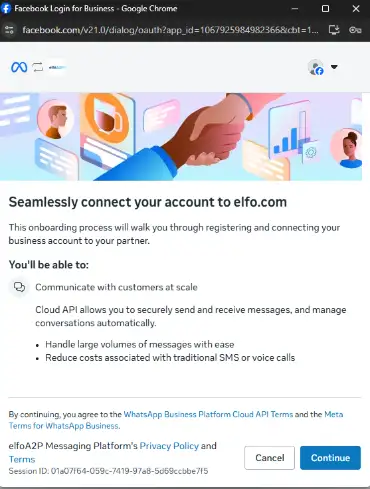
Step 2: Authorize with Facebook
This opens Meta’s own login and consent screen, where you authorize elfo to manage your WhatsApp assets.
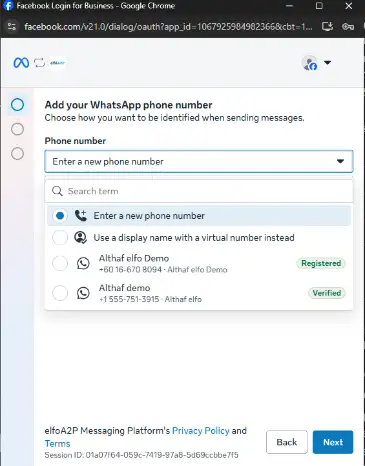
Step 3: Add your number
Meta walks you through adding your phone number, either entering a new number or selecting one already registered to your Business Portfolio.
Creating a template
Click + Add New Template.
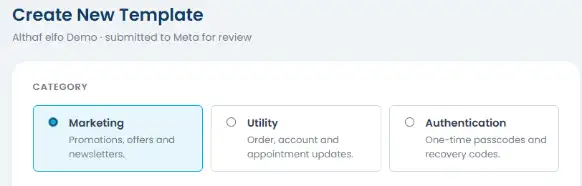
Step 1: Choose a category
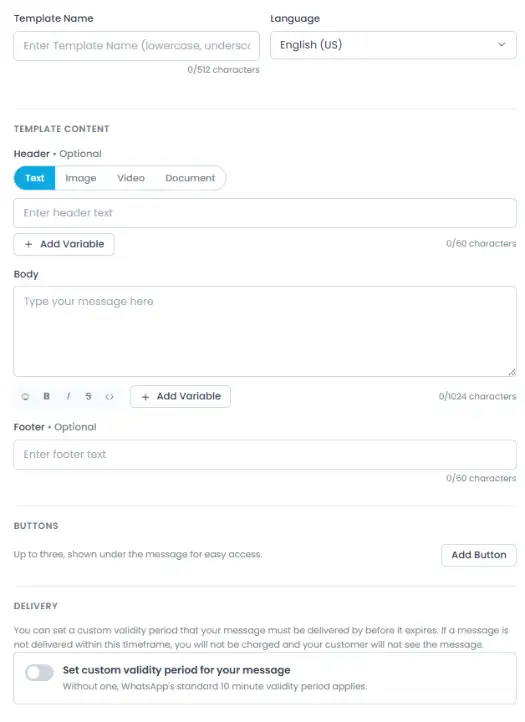
Pick Marketing, Utility, or Authentication. This changes what the rest of the form looks like, so choose the one that matches the message you’re sending.
Step 2: Fill in the content
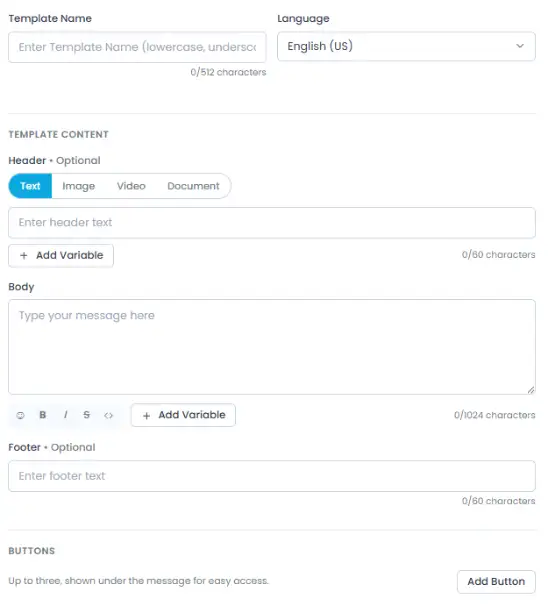
Regardless of category (except Authentication, which has fixed content, see below), you’ll fill in:
Template Name: what identifies this template internally. Use lowercase letters and underscores (e.g. order_voucher_v3), this can’t be changed once submitted.
Language: the language you’re writing the message in. Meta reviews the template against this language.
Header (optional): the top of your message. Choose Text (a short line, up to 60 characters), or attach an Image, Video, or Document instead.
Body: the main message content, up to 1024 characters. Use B, I, S for bold, italic, and strikethrough, and click + Add Variable to insert a placeholder (e.g. {{1}}) that gets filled in per recipient when you send a broadcast.
Footer (optional): a small line of text below the body, up to 60 characters. Can’t contain variables.
Marketing
Up to 3 buttons:
| Button | What it does | Notes |
| Marketing Opt-Out | A link contacts can tap to stop receiving marketing messages | Recommended for compliance |
| Visit Website | Links out to a URL | 2 button maximum |
| Call Phone Number | Lets contacts tap to call you | 1 button maximum |
| Copy Offer Code | Lets contacts copy a promo code with one tap | 1 button maximum |
Utility
| Button | What it does | Notes |
| Visit Website | Links out to a URL | 2 button maximum |
| Call Phone Number | Lets contacts tap to call you | 1 button maximum |
| Quick Reply | A simple button contacts can tap to send back a predefined response | – |
A Delivery section lets you set a custom validity period your message must be delivered within before it expires. Without one, WhatsApp’s standard 10-minute validity period applies. it.
If a message isn’t delivered in time, you won’t be charged and the customer won’t see
Authentication
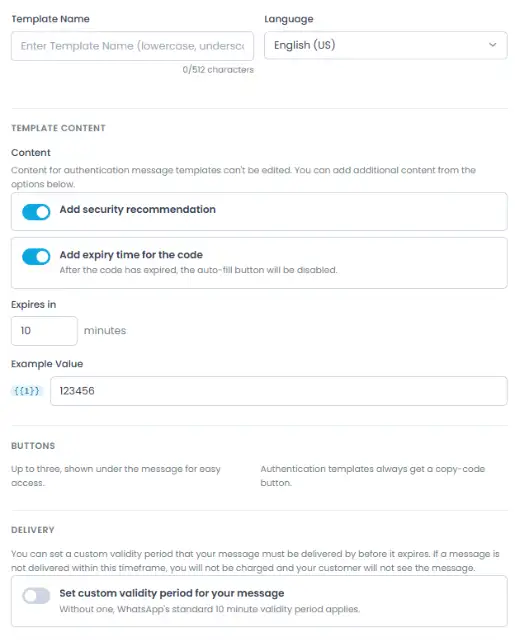
Authentication (one-time passcodes and recovery codes)
Content isn’t freely editable here, it’s a fixed OTP format. You can toggle Add security recommendation and Add expiry time for the code (with an editable expiry duration in minutes), and set an Example Value for the code placeholder.
Authentication templates always get a copy-code button automatically (lets contacts copy the code with one tap), there’s no manual button configuration.
Also includes the same Delivery custom validity period option as Utility.
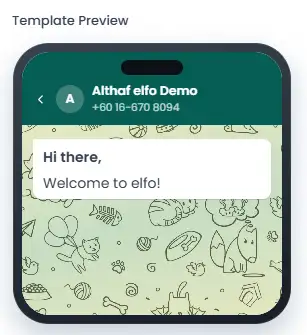
Step 3: Review the preview
A live Template Preview on the right shows exactly how the message will look on WhatsApp as you build it. Check it matches what you intend to send, then submit, this sends the template to Meta for review.
Step 4: Submit
Click Create Template to send it to Meta for review. Its status starts as Pending, once Meta makes a decision, it changes to Approved or Rejected.
Review usually takes anywhere from a few hours up to 48 hours, and you can check the status anytime from the template list under Manage template.
A template only becomes usable in a broadcast once it’s Approved.
Managing templates
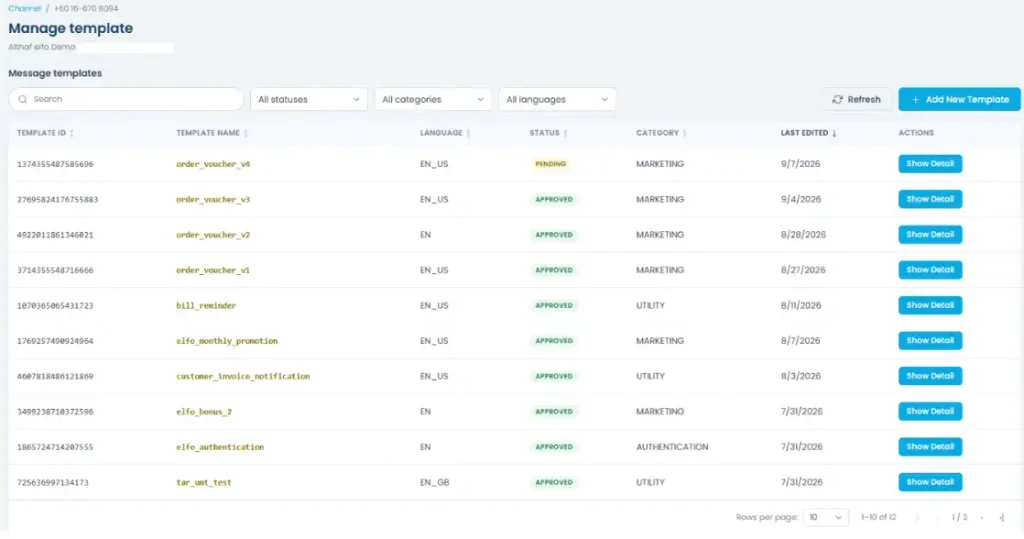
Click Manage template on a channel’s card to see every template submitted for that number.
You can:
Search by name, or filter by Status, Category, or Language
Sort any column (Template ID, Template Name, Language, Status, Category, Last Edited)
Refresh to sync the latest status from Meta
Last Edited shows when the template was first submitted, or, if it’s been edited since, the date of the most recent edit.
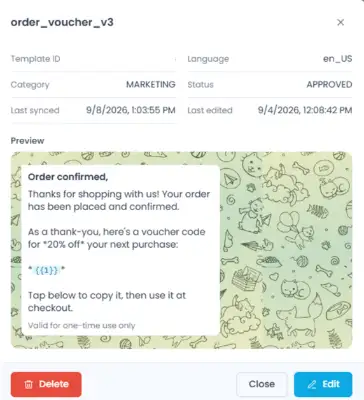
Click Show Detail on any template to see its full content and preview.
Editing a template
Editing is only available for Approved and Rejected templates. While a template is Pending, you can’t edit it until Meta makes a decision on the current version.
To do it: Click Show Detail and click Edit button there.
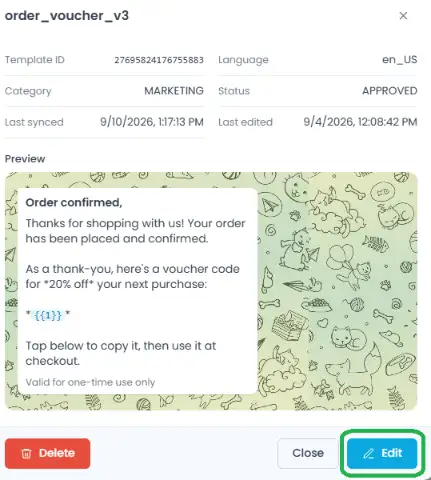
The edit form is prefilled with the template’s current content. Template Name, Language, and Category stay locked, since Meta ties the template’s identity to these and they can’t be changed after creation.
Everything else (Header, Body, Footer, Buttons, and Delivery settings) is editable.
Saving your changes resubmits the template to Meta for review. Its status changes to Pending until Meta makes a decision, and it won’t be usable in broadcasts until then.
Channels
- Home
- >
- Channels
Getting started with Channel
Channel is where you connect and manage the WhatsApp numbers your workspace sends from.
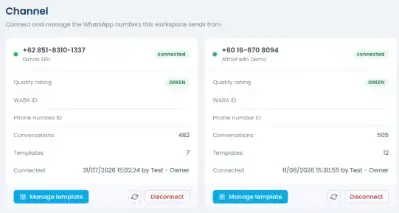
If no number is connected yet, you’ll see an empty state prompting you to connect one. Once connected, each number shows as a card with:
Its Quality rating (Green, Yellow, or Red)
Its WABA ID and Phone number ID
How many Conversations and Templates it has
When it was connected, and by whom
From each card, you can Manage template, Refresh its data, or Disconnect the number.
Connecting a channel
Click + Connect a number. You’ll see two options:
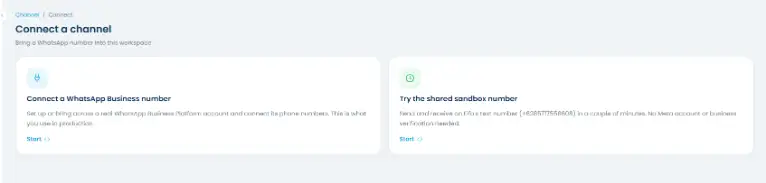
Connect a WhatsApp Business number: set up or bring across a real WhatsApp Business Platform account. This is what you’ll use in production.
Try the shared sandbox number: send and receive on Elfo’s test number in a couple of minutes. No Meta account or business verification needed, useful for exploring the platform before you connect your own number.
Step 1: Choose your method
If you choose to connect a real number, pick whether you’re setting up a NEW WhatsApp Business Platform account or connecting an EXISTING one, or skip straight to Continue with Facebook if you already know what you’re doing.
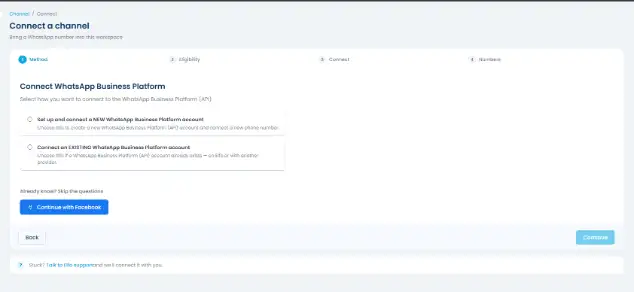
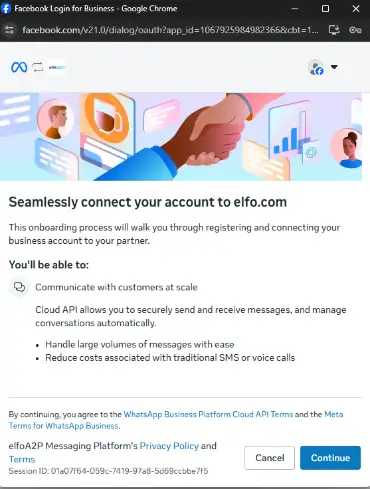
Step 2: Authorize with Facebook
This opens Meta’s own login and consent screen, where you authorize elfo to manage your WhatsApp assets.
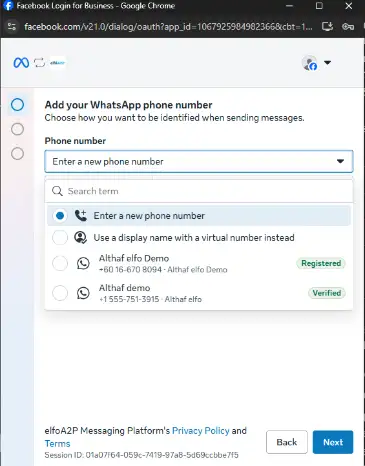
Step 3: Add your number
Meta walks you through adding your phone number, either entering a new number or selecting one already registered to your Business Portfolio.
Creating a template
Click + Add New Template.
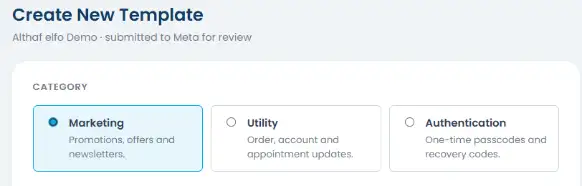
Step 1: Choose a category
Pick Marketing, Utility, or Authentication. This changes what the rest of the form looks like, so choose the one that matches the message you’re sending.
Step 2: Fill in the content
Regardless of category (except Authentication, which has fixed content, see below), you’ll fill in:
Template Name: what identifies this template internally. Use lowercase letters and underscores (e.g. order_voucher_v3), this can’t be changed once submitted.
Language: the language you’re writing the message in. Meta reviews the template against this language.
Header (optional): the top of your message. Choose Text (a short line, up to 60 characters), or attach an Image, Video, or Document instead.
Body: the main message content, up to 1024 characters. Use B, I, S for bold, italic, and strikethrough, and click + Add Variable to insert a placeholder (e.g. {{1}}) that gets filled in per recipient when you send a broadcast.
Footer (optional): a small line of text below the body, up to 60 characters. Can’t contain variables.
Marketing
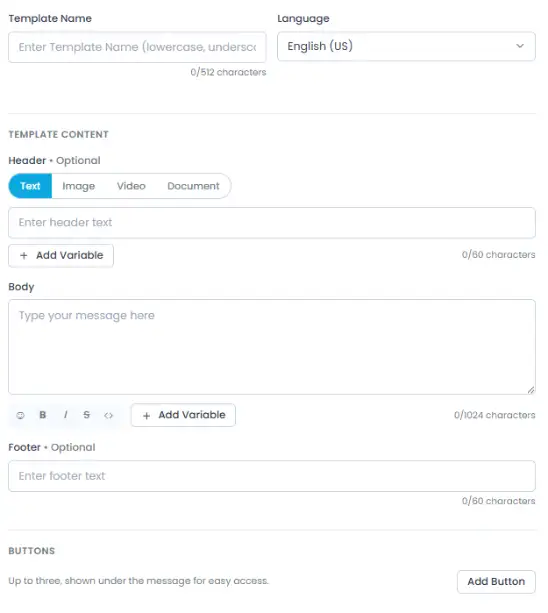
Up to 3 buttons:
| Button | What it does | Notes |
| Marketing Opt-Out | A link contacts can tap to stop receiving marketing messages | Recommended for compliance |
| Visit Website | Links out to a URL | 2 button maximum |
| Call Phone Number | Lets contacts tap to call you | 1 button maximum |
| Copy Offer Code | Lets contacts copy a promo code with one tap | 1 button maximum |
Utility
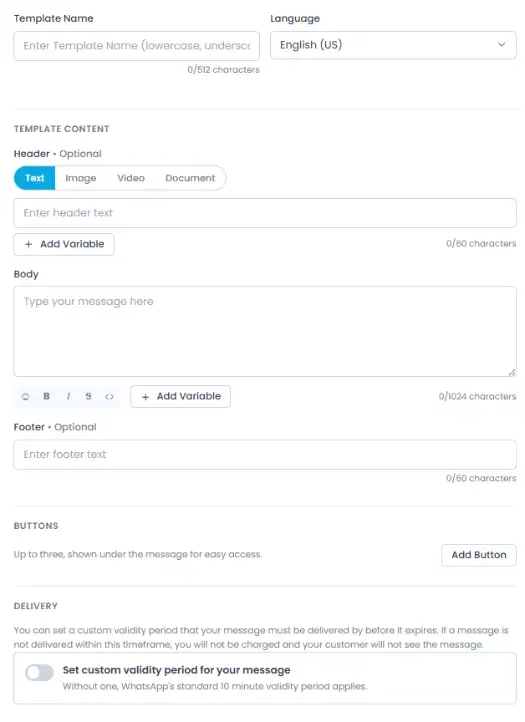
| Button | What it does | Notes |
| Visit Website | Links out to a URL | 2 button maximum |
| Call Phone Number | Lets contacts tap to call you | 1 button maximum |
| Quick Reply | A simple button contacts can tap to send back a predefined response | – |
A Delivery section lets you set a custom validity period your message must be delivered within before it expires. Without one, WhatsApp’s standard 10-minute validity period applies. it.
If a message isn’t delivered in time, you won’t be charged and the customer won’t see
Authentication
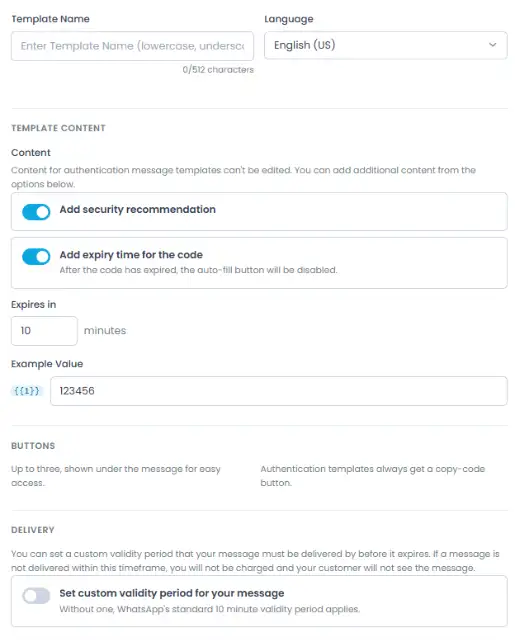
Authentication (one-time passcodes and recovery codes)
Content isn’t freely editable here, it’s a fixed OTP format. You can toggle Add security recommendation and Add expiry time for the code (with an editable expiry duration in minutes), and set an Example Value for the code placeholder.
Authentication templates always get a copy-code button automatically (lets contacts copy the code with one tap), there’s no manual button configuration.
Also includes the same Delivery custom validity period option as Utility.
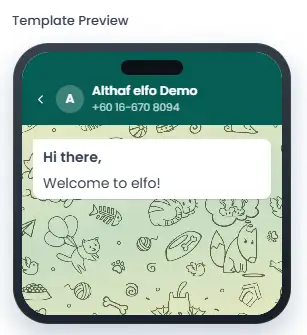
Step 3: Review the preview
A live Template Preview on the right shows exactly how the message will look on WhatsApp as you build it. Check it matches what you intend to send, then submit, this sends the template to Meta for review.
Step 4: Submit
Click Create Template to send it to Meta for review. Its status starts as Pending, once Meta makes a decision, it changes to Approved or Rejected.
Review usually takes anywhere from a few hours up to 48 hours, and you can check the status anytime from the template list under Manage template.
A template only becomes usable in a broadcast once it’s Approved.
Managing templates
Click Manage template on a channel’s card to see every template submitted for that number.
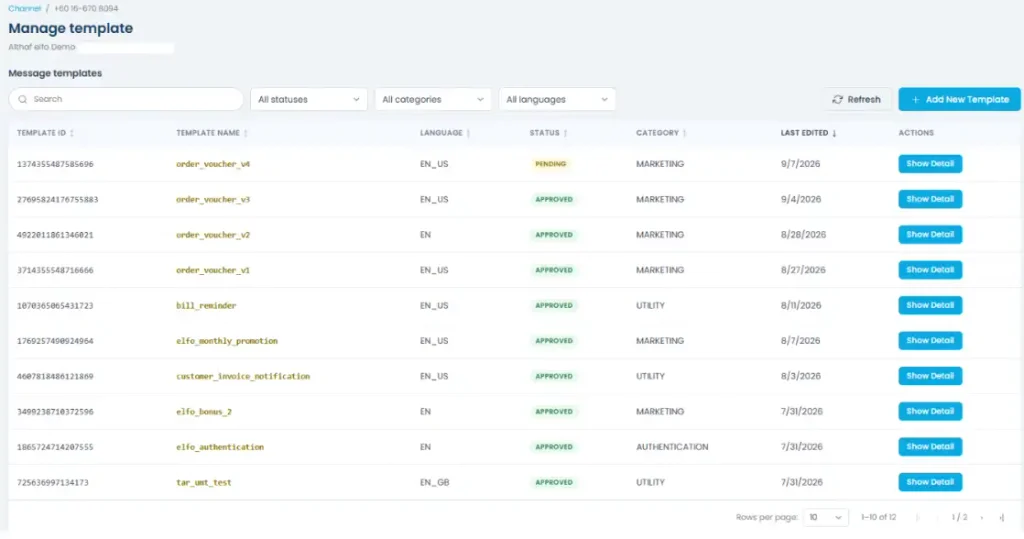
You can:
Search by name, or filter by Status, Category, or Language
Sort any column (Template ID, Template Name, Language, Status, Category, Last Edited)
Refresh to sync the latest status from Meta
Last Edited shows when the template was first submitted, or, if it’s been edited since, the date of the most recent edit.
Click Show Detail on any template to see its full content and preview.
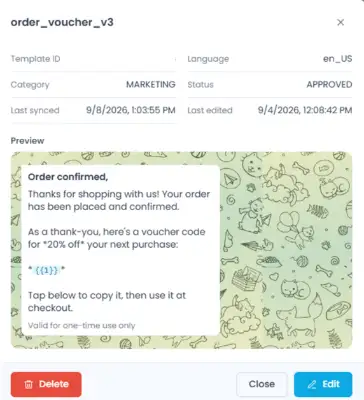
Editing a template
Editing is only available for Approved and Rejected templates. While a template is Pending, you can’t edit it until Meta makes a decision on the current version.
To do it: Click Show Detail and click Edit button there.
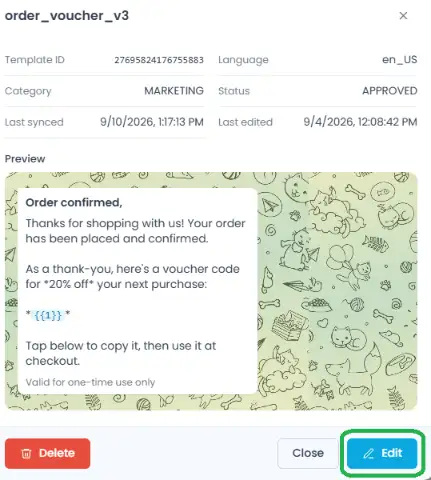
The edit form is prefilled with the template’s current content. Template Name, Language, and Category stay locked, since Meta ties the template’s identity to these and they can’t be changed after creation.
Everything else (Header, Body, Footer, Buttons, and Delivery settings) is editable.
Saving your changes resubmits the template to Meta for review. Its status changes to Pending until Meta makes a decision, and it won’t be usable in broadcasts until then.
Reports
- Home
- >
- Reports
Getting started with Reports
Reports gives you visibility into conversation and broadcast performance. There are two views: Chats Report and Broadcast Report.
Use the date range buttons (7d, 30d, 90d, or Custom) and the All channels dropdown to scope the data, then Show data to refresh the view. Export downloads the current report.
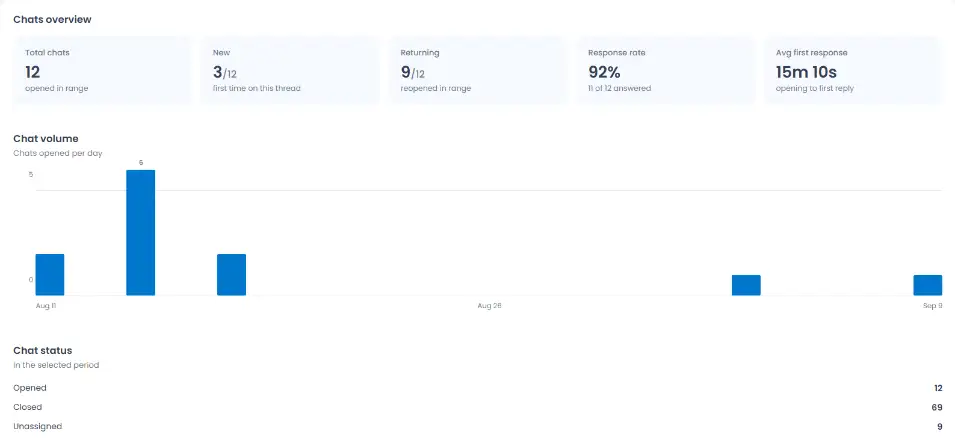
Chats Report
Chats overview
Total chats: how many conversations opened in the selected range
New: how many were a contact’s first time on this thread
Returning: how many were a contact reopening an existing thread
Response rate: the percentage of chats that received a reply
Avg first response: the average time between a chat opening and the first reply
Below that, a Chat volume chart shows chats opened per day, and Chat status breaks down how many chats are currently Opened, Closed, or Unassigned.
Messages overview
While the Chats overview counts conversations, Messages overview counts individual messages within those conversations

Total messages: everything sent and received
Inbound: messages from customers
Outbound: messages you sent, with a delivery percentage
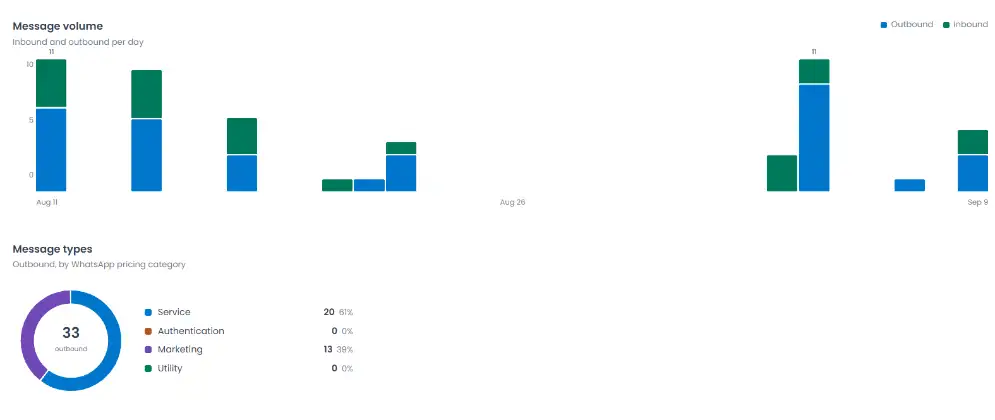
A Message volume chart shows inbound vs. outbound messages per day, and Message types breaks outbound messages down by WhatsApp pricing category: Service, Authentication, Marketing, and Utility.
Team Performance Overview

A table showing, per agent: how many chats they handled, messages sent and received, and their average reply time.
Broadcast Report
Like Chats Report, use the date range buttons (7d, 30d, 90d, or Custom) and the All channels dropdown to scope the data, and Export to download it.
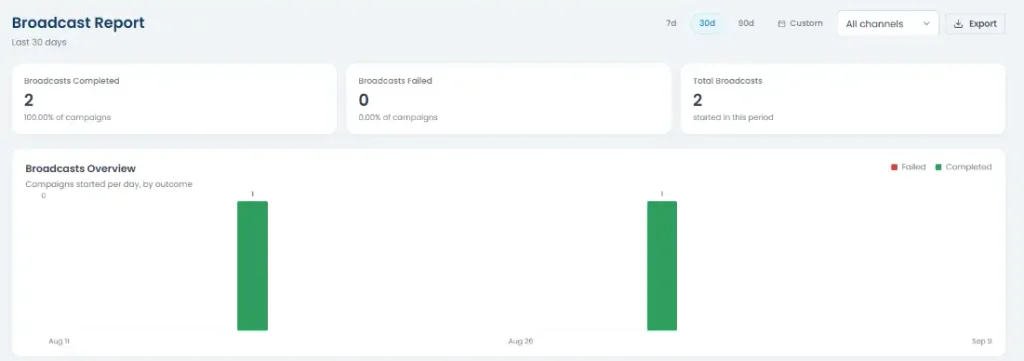
At the top: Broadcasts Completed and Broadcasts Failed (each shown as a count and a percentage of total campaigns),
and Total Broadcasts started in the period. Below that, a chart shows campaigns started per day, colored by outcome.

The table above lists every broadcast in the period: initiated time, broadcast name, channel, template used, segment, total recipients, total messages sent, and status.
Click Download report on any row to get a CSV with per-recipient detail
Broadcast
- Home
- >
- Broadcast
Getting started with Broadcast
Broadcast is where you send an approved message template to a segment or a list of contacts.
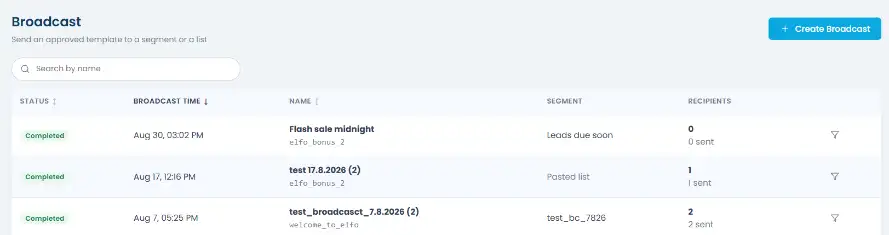
The Broadcast page lists every broadcast you’ve sent, scheduled, or saved as a draft, with its status, broadcast time, name, segment, and recipient count.
Use the search bar to find a broadcast by name, and click any column header (Status, Broadcast Time, Name) to sort the list. Broadcast Time is sorted newest first by default.
Creating a broadcast
Click + Create Broadcast.
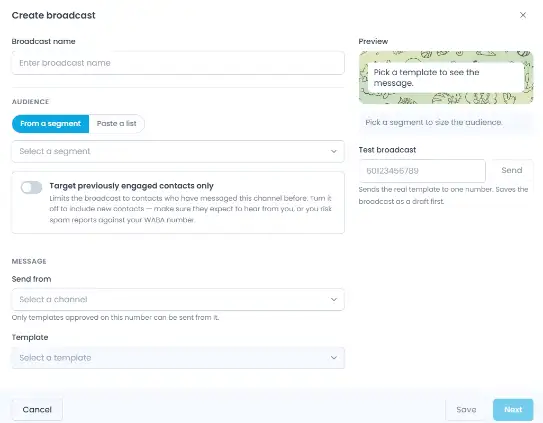
Step 1: Name it and pick your audience
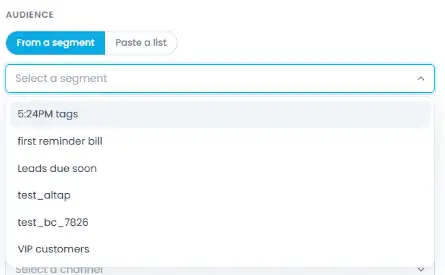
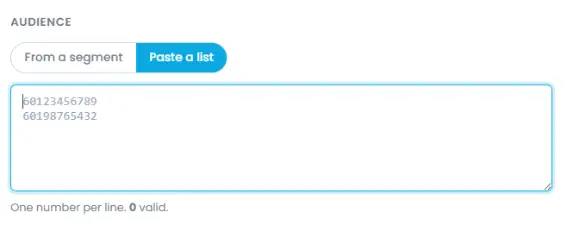
Name your broadcast, then choose your audience: either From a segment (pick one of your saved segments) or Paste a list (paste numbers directly).
Step 2: Set your targeting
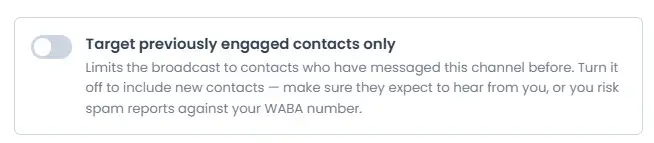
Optionally toggle Target previously engaged contacts only to limit the send to contacts who’ve already messaged this channel.
Turning this off includes new contacts too, only do this if they already expect to hear from you, since messaging people who haven’t opted in risks spam reports against your WABA number.
Step 3: Choose your message
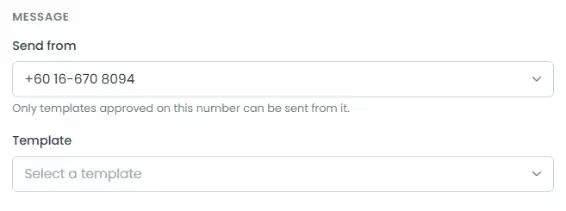
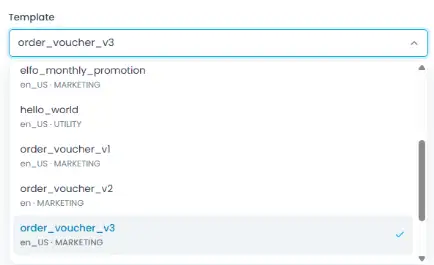
Under Message, pick Send from (the channel to send from) and a Template. Only templates approved for that channel show up here.
Step 4: Fill in the placeholders
Templates often include placeholders, spots in the message that get replaced with something specific to each recipient, like their name or a voucher code. These show up as {{1}}, {{2}}, and so on in the template text.
For example, the order_voucher_v3 template reads:
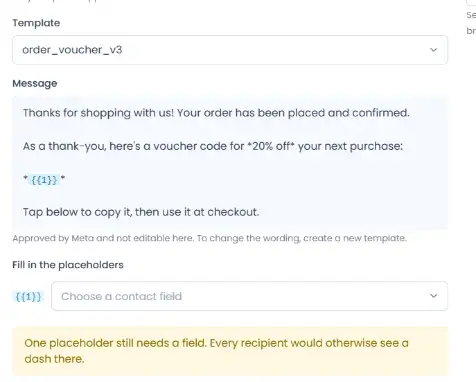
Here, {{1}} is mapped to a Voucher Code contact field. Each recipient then sees their own voucher code in place of {{1}} when the message is sent.
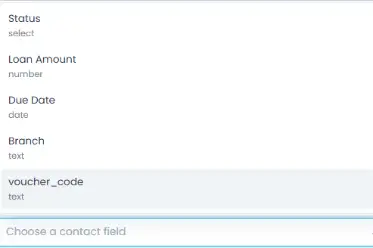
Under Fill in the placeholders, choose which contact field feeds each numbered placeholder ({{1}}, {{2}}, and so on) in your template. Every placeholder needs a field mapped to it, if one is left unmapped, recipients see a dash where that content should be.

The Preview panel on the right shows exactly what recipients will see, and updates as you fill things in.
Step 5: Test and send
Optionally send a Test broadcast to one number, this sends the real template to that number and saves the broadcast as a draft first. The modal stays open on the same screen, so you can keep editing.
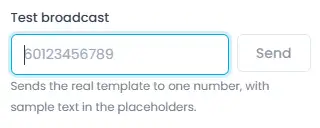
From here:
Click Save to save the broadcast as a Draft, to come back to later.
Click Next to continue, where you’ll choose between Send now
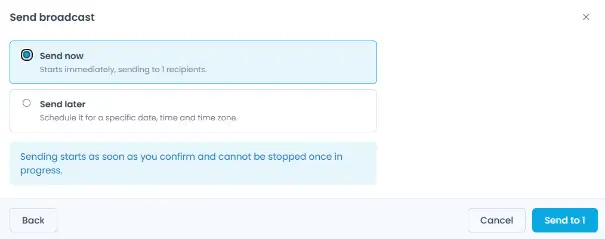
or Send later.
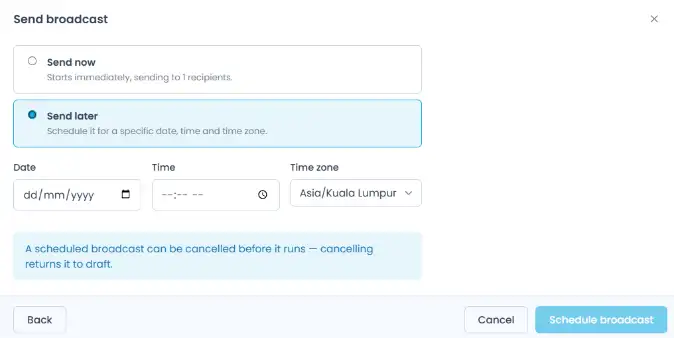
Broadcast statuses
| Status | What it means | Available Actions |
| Draft | Saved but not sent yet | Send now, Clone, Continue editing, Delete |
| Scheduled | Set to send at a future time | Clone, Cancel (reverts it to Draft) |
| In Progress | Currently sending | Clone |
| Completed | Finished sending | Clone, View Details |
| Failed | Failed to send | Clone, View Details |
Viewing broadcast details
Click a broadcast to open its details.
Completed
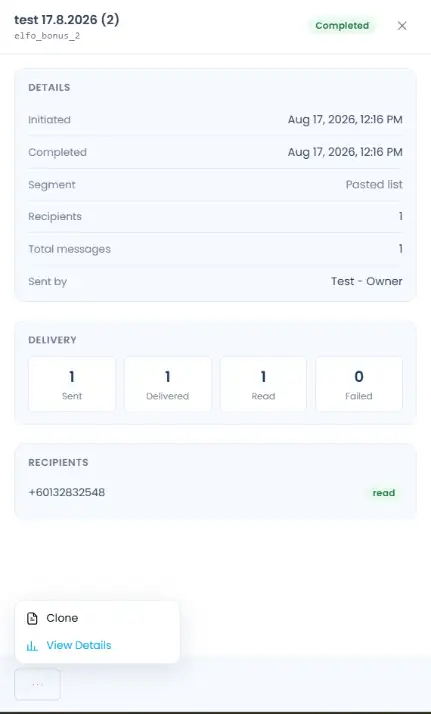
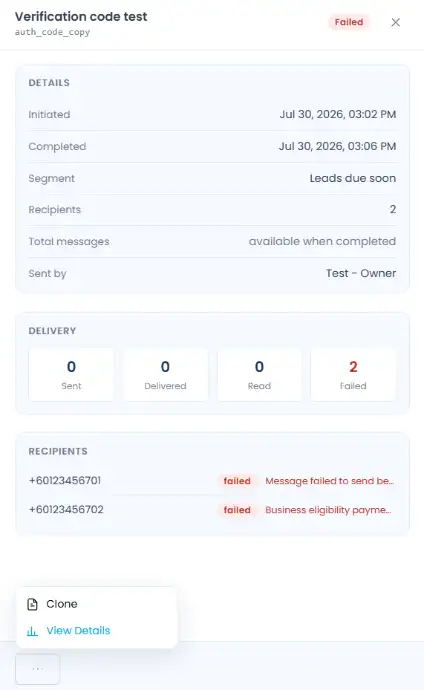
Details: when it was initiated and completed, the segment used, recipient count, total messages, and who sent it.
Delivery: a breakdown of Sent, Delivered, Read, and Failed counts.
Recipients: every number the broadcast went to, with its individual status.
Draft
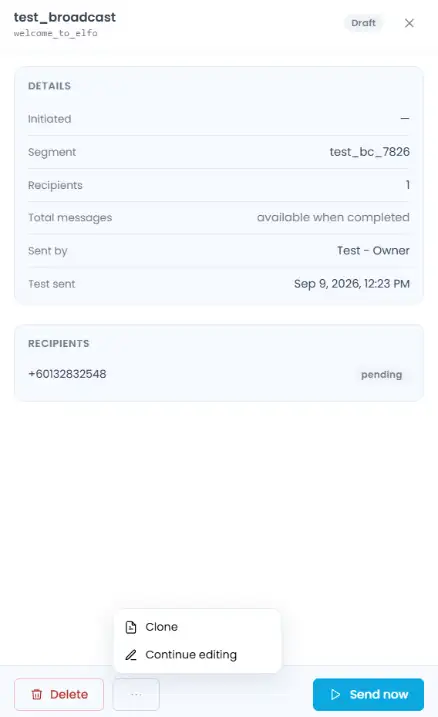
Drafts show the same Details section, but with Total messages marked as “available when completed”, plus quick access to Send now or Continue editing right from the detail view.
Failed broadcasts
For a failed broadcast, the Recipients list shows the failure reason next to each number, so you can see exactly what went wrong.
Contacts
- Home
- >
- Contacts
Getting started with Contacts
Contacts is where you manage everyone your workspace can message: their details, tags, custom data, and the segments you build from them.
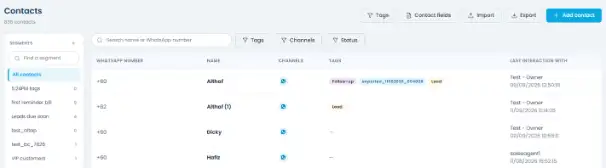
The Contacts page lists everyone in your workspace, with their WhatsApp number, name, connected channel, tags, and who last interacted with them. Use the search bar or the Tags, Channels, and Status filters to narrow the list down. The tabs above the table are your saved segments, more on those below.
Tags
Tags are simple labels you can attach to contacts (e.g. “VIP customers”, “Follow-up”). Manage them from Tags in the toolbar.
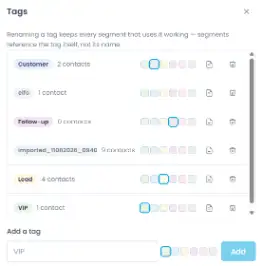
Renaming a tag keeps every segment that uses it working, since segments reference the tag itself, not its name. Renaming is always safe.
Deleting a tag permanently removes it from every contact that has it. This can’t be undone.
Contact fields
By default, a contact only has a WhatsApp number and Name. Everything else, like Status, Loan Amount, Due Date, Branch, or anything specific to your business, is a custom field your team defines. Manage these from Fields in the toolbar.
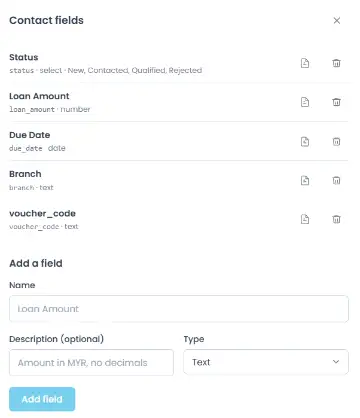
Each field has a Name, an optional Description (notes for your team on what to enter), and a Type: Text, Number, Date, or Select (a fixed list of options you define, e.g. Status: New, Contacted, Qualified, Rejected).
Deleting a field permanently removes its stored values from every contact, the contacts themselves stay, but their data for that field is gone. This can’t be undone.
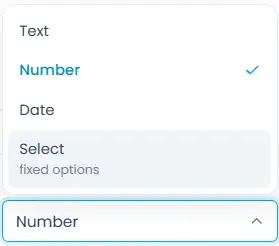
Deleting or blocking a contact

Open a contact’s details (from Contacts or from within a conversation in Inbox) to delete or block them. Blocking stops them from messaging you; deleting removes their record entirely.
Adding a contact manually
Click + Add contact.
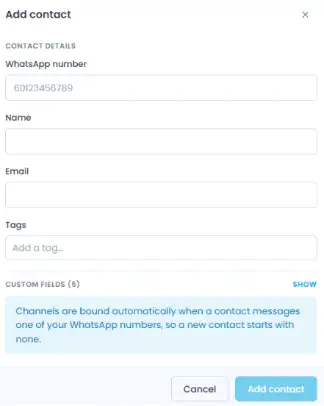
Only WhatsApp number is required, you can leave every other field (Name, Email, Tags, and any custom fields) blank and fill it in later.
Importing contacts
Click Import to bring in contacts from a CSV file.
Step 1: Purpose
Upload your file, and choose what the import should do:
Add & update contacts: updates existing contacts and creates profiles for numbers that aren’t in your workspace yet.
Add new contacts only: imports new contacts, skipping any numbers already in your workspace.
Update existing contacts only: updates existing contacts, skipping any numbers not yet registered.
Importing contacts
Click Import to bring in contacts from a CSV file.
Step 1: Purpose
Upload your file, and choose what the import should do:
Add & update contacts: updates existing contacts and creates profiles for numbers that aren’t in your workspace yet.
Add new contacts only: imports new contacts, skipping any numbers already in your workspace.
Update existing contacts only: updates existing contacts, skipping any numbers not yet registered.
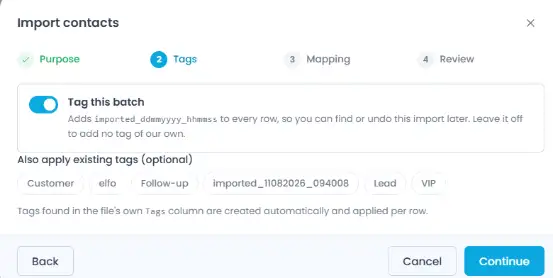
Step 2: Tags
Optionally tag this whole batch (so you can find or undo the import later), and apply any existing tags to every row.
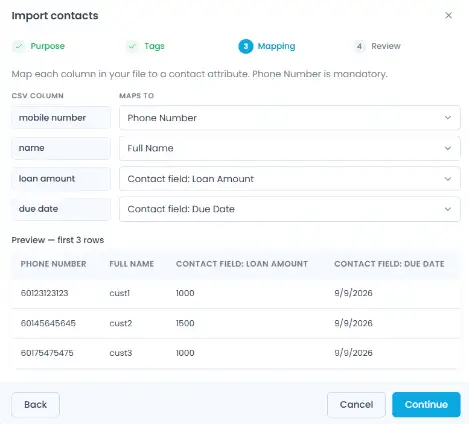
Step 3: Mapping
For each column in your file, choose which contact attribute it maps to (Phone Number, Full Name, Tags, or any custom field), or mark it Not imported. A live preview shows the first few rows of your file so you can confirm the mapping looks right.
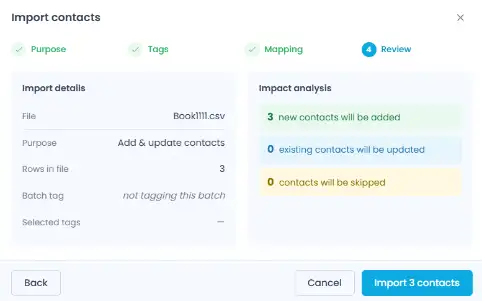
Step 4: Review
Check a summary before you commit, showing how many contacts will be added, updated, or skipped.
Exporting contacts
Click Export to download your contact list as a CSV file, with all contact details included.
Segments
A segment is a saved filter, a way to group contacts that match certain conditions so you can target them later (e.g. for a broadcast).
Step 1: Name your segment
Click + Segment, give it a name and an optional description.
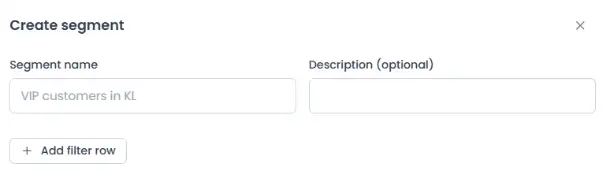
Step 2: Add your filters
Click + Add filter row. Each row lets you filter by:
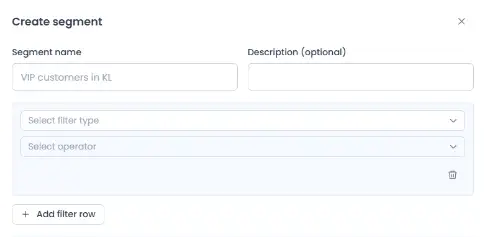
| Type | Operators | Value Input |
| Text | is equal to, is not equal to, contains, does not contain, exists, does not exist | Free text |
| Number | is equal to, is not equal to, greater than, less than, between, exists, does not exist | Number input (two, for “between”) |
| Date | is equal to, before, after, between, exists, does not exist | Date picker (a range picker for “between”) |
| Select | is equal to, is not equal to, has any of, has none of, exists, does not exist | Checklist of the field’s predefined options |
What each operator means:
is equal to / is not equal to: matches an exact value, or excludes it.
contains / does not contain: matches if the field’s text includes (or doesn’t include) what you type, useful for partial matches.
greater than / less than: matches numbers above or below a value.
before / after: matches dates earlier or later than a specific date.
between: matches values (numbers or dates) that fall within a range you set.
has any of / has all of / has none of: for a field or tag with multiple options checked, has any of matches contacts with at least one of them, has all of matches only if they have every one of them, and has none of matches contacts with none of them.
exists / does not exist: checks whether a contact has any value in that field at all, so these two don’t need a value input.
If you add a second filter row, a toggle appears so you can choose whether contacts need to match all rows or any row. With just one row, there’s nothing to combine, so the toggle stays hidden.
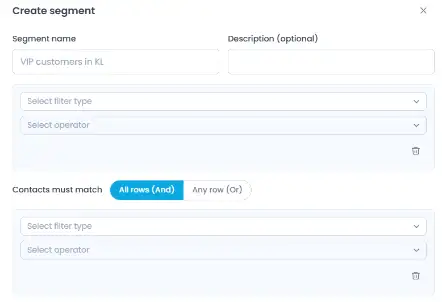
Step 3: Check the preview
As you build the filter, a live preview shows how many contacts match
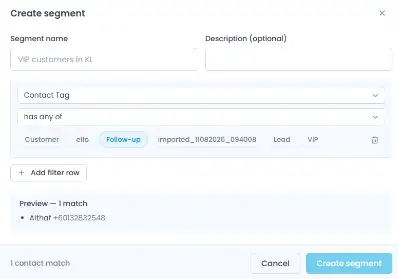
Once a segment is saved, you can also export just its contacts, select the segment’s tab above the contact list, then click Export segment
Inbox
- Home
- >
- Inbox
Getting started with Inbox
Inbox is where you handle conversations with your contacts. Most of what you’ll see here is inbound messages that come in through WhatsApp, but you can also start a new conversation yourself.
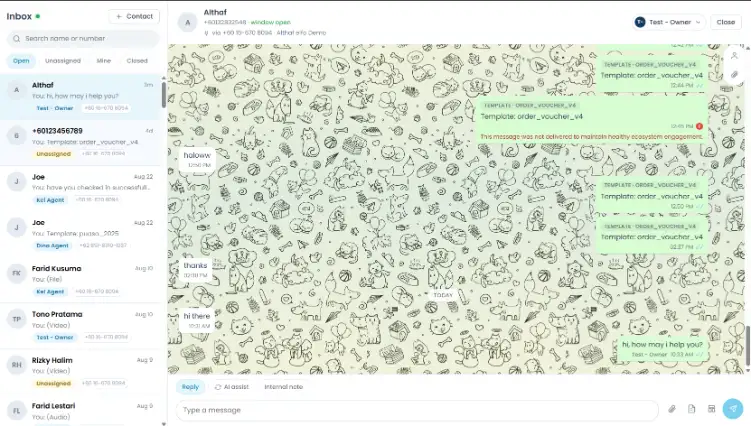
Every conversation shows up as a row in the conversation list, with the contact’s name, a preview of the last message, who it’s assigned to, and which channel it came in on.
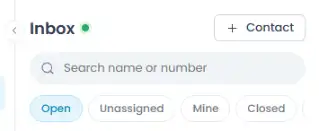
Use the tabs above the list to filter what you see:
Open: conversations that are still active
Unassigned: conversations no agent has picked up yet
Mine: conversations currently assigned to you
Closed: conversations you’ve closed
Replying to a conversation
Open a conversation and use the tabs above the message box:
Reply: send a regular message.
AI assist: get help polishing what you’re about to send.
Internal note: leave a note your team can see, but the contact can’t.
Using AI assist
Type a draft, pick a tone (Professional, Concise, Friendly, or Simple), and click Rewrite to have it reworded for you before you send it.

Using internal notes
Switch to the Internal note tab to leave a note on the conversation that only your team can see, it’s never sent to the contact on WhatsApp This is useful for leaving context for whoever picks up the conversation next, flagging something that needs follow-up, or coordinating with a teammate without leaving the thread Internal notes show up inline in the conversation history, but styled differently from regular messages so it’s clear they’re internal-only.

Next to the message box, you’ll also find:
Attachment (paperclip icon): send a file, image, or document along with your message.
Template: send an approved message template. You’ll need this once the 24-hour conversation window closes, WhatsApp only allows template messages outside that window, so this is how you re-open the conversation.
Assigning conversations
Click the agent badge in the top right of a conversation to reassign it.
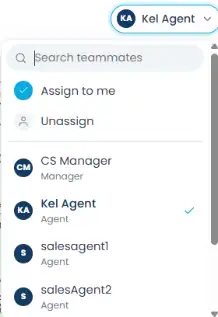
You can search for a teammate, use Assign to me, or Unassign to send it back to the unassigned queue. Only teammates with access to that conversation’s channel show up in the list.
Starting a new conversation
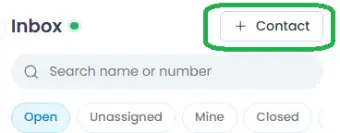
Click + Contact to add a new contact and, optionally, start a conversation with them right away.
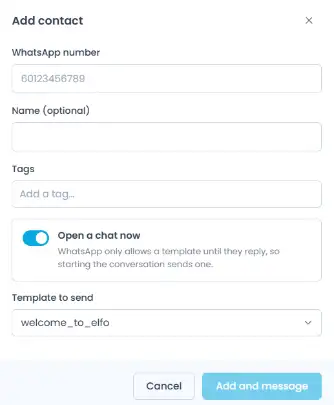
WhatsApp number and Name (optional): the contact’s basic details.
Tags: apply any existing tags to this contact.
Open a chat now: when this is on, starting the conversation sends a template message. WhatsApp only lets businesses message a contact who hasn’t messaged them first if they use an approved template, so you’ll need to pick one from Template to send.
Contact details and attachments
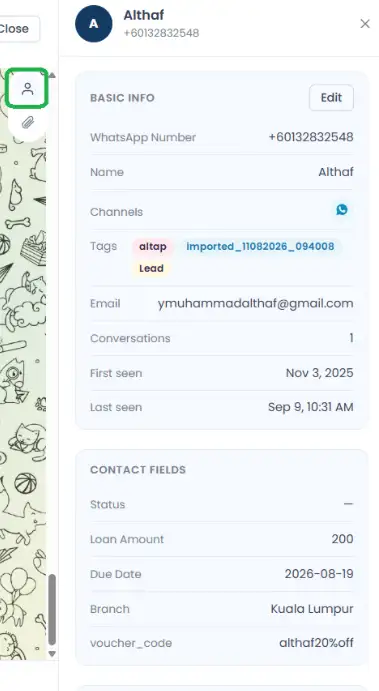
Click a contact’s name inside a conversation to open their details on the right.
Contact details
WhatsApp number, name, tags, email, first/last seen, conversation count, and any custom fields your workspace has added (e.g. Status, Loan Amount, or Branch).
By default a contact only has WhatsApp number and Name, everything else is a custom field your team defines. You can edit any of these details directly from this panel, no need to leave the conversation and go to the Contacts page.
Attachments
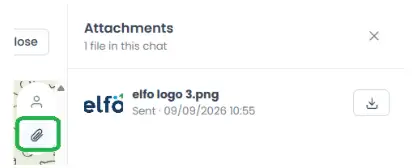
Every file shared in that conversation, with a download button for each.
Quick Start
- Home
- >
- Quick Start
Connecting your WhatsApp channel
Before you can send or receive a single message, you’ll need to bring a WhatsApp number into your workspace. Go to Channel and click Connect. You’ll see two options:
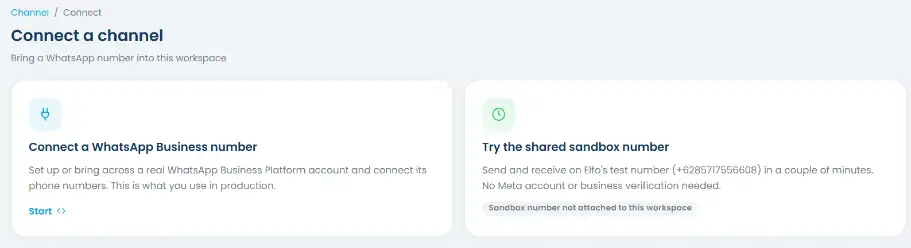
Connect a WhatsApp Business number: set up or bring across a real WhatsApp Business Platform account. This is what you’ll use in production.
Try the shared sandbox number: send and receive on Elfo’s test number in a couple of minutes. No Meta account or business verification needed, a good way to explore the platform before you connect your own number.
Step 1: Choose your method
If you’re connecting a real number, you’ll be asked whether you’re setting up a NEW WhatsApp Business Platform account or connecting an EXISTING one. If you already know what you’re doing, you can skip straight to Continue with Facebook.
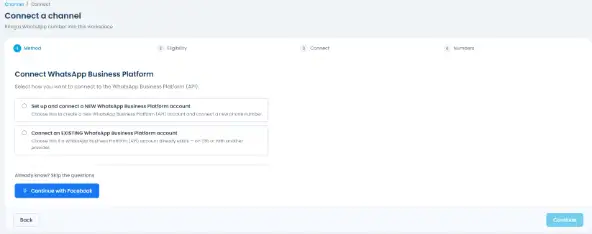
Step 2: Authorize with Facebook
Clicking Continue with Facebook opens Meta’s own login and consent screen. Here, you authorize Elfo to manage your WhatsApp assets on your behalf.
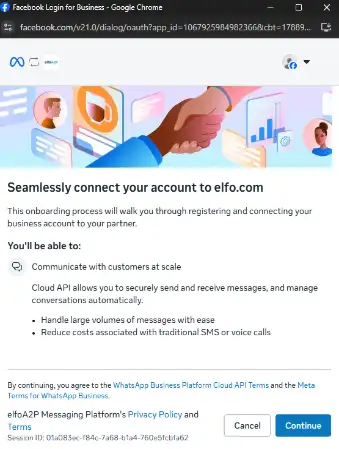
Step 3: Add your number
From there, Meta walks you through adding your phone number, either entering a new number or selecting one already registered to your Business Portfolio.
Understanding your workspace
Everything in the platform lives inside a workspace. A workspace can connect multiple WhatsApp channels, and every user, team, contact, and broadcast belongs to that workspace.
Roles
There are three roles, each with a different level of access:
| Owner | Manager | Agent | |
| Inbox | Full access | Full access | Full access |
| Contacts | Full access | Full access | Full access |
| Broadcast | Full access | Full access | No access |
| Reports | Full access | Full access | No access |
| Channel | Full access | Submit & edit templates only | No access |
| Billing | Full access | No access | No access |
| Company Settings | Full access | No access | No access |
| Team & Users | Full access | Limited to own team | No access |
| Personal Settings | Full access | Full access | Full access |
Owner: has full control over the workspace. Owners connect channels, manage billing, create teams, and manage everyone’s access.
Manager: runs day-to-day operations. Managers handle the inbox, contacts, broadcasts, and reports, and manage members within their own team.
Agent: handles conversations and contacts on the channel(s) their team has access to.
Teams
You can organize a workspace into teams (e.g. “CS Team”, “Sales Team”). Each team gets:
One or more WhatsApp channels
A set of members (Managers and Agents)
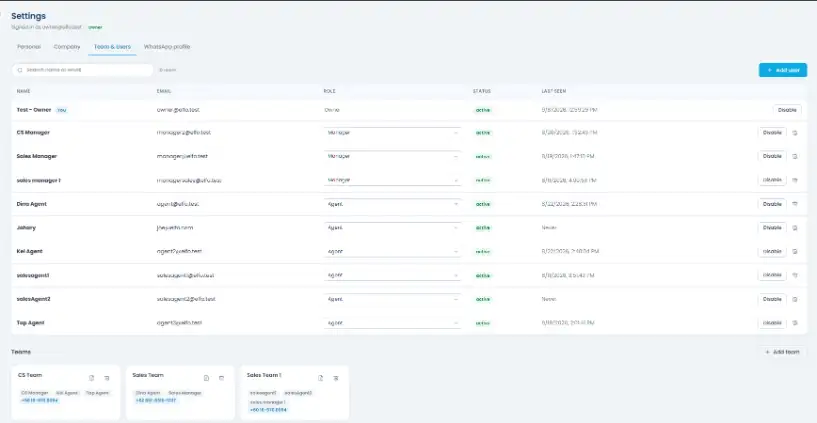
Members only see the channels assigned to their team, so a Sales agent won’t see CS conversations and vice versa. A single team isn’t limited to one channel, you can assign as many as you need.
Only the Owner can create teams and assign channels to them. Managers can add or remove Agents within their own team, but they can’t create new teams or reassign channels.
Inviting your Teammates
Step 1: Send the invite
Go to Settings > Team & Users and click + Add user. Enter the person’s email, they’ll receive an invitation to join your workspace.
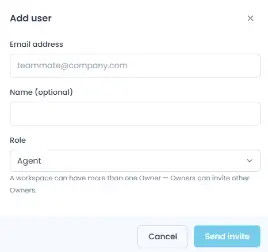
Step 2: Set their role
Once they’ve accepted, use the Role dropdown next to their name to set them as Manager or Agent.
Step 3: Add them to a team
Scroll down to the Teams section and either create a new team or edit an existing one to include them. Click + Add team,
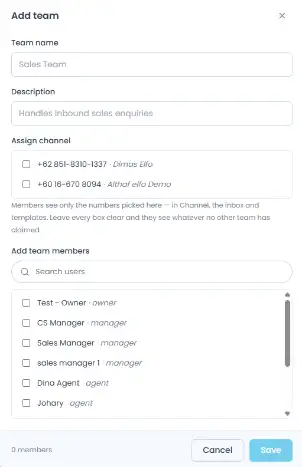
or the edit icon on a team card, then check off the teammate under Add team members.
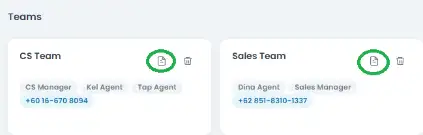
A teammate only sees the channel(s) assigned to their team, so make sure they’re added to the right one.