Month: February 2024
elfoA2P User Manual
- Home
- >
- elfoA2P User Manual
Sign up for an elfoA2P account
1.Go to Account Registration page.
2.You are required to fill in signup form and click Sign Up. (You can also opt to register account using Gmail or Social Media Accounts).

3. Check your mailbox for verification email from elfoA2P.
4. Open the email and click Verify Email Address.

5. This will take you to elfoA2P account setup journey.
6. To complete your account, you are required to verify your phone number. To do this, simply fill in your phone number and click Send.
7. Check your phone for incoming SMS with one time password (OTP).

8. Fill in the OTP in the fields provided and click Verify.
9. Should you do not receive the password, click Resend Code to receive the OTP code again.
10. Once verification completed, you will see a successful notification and this will take you to elfoA2P Home Dashboard and you can start enjoying free credits that is available in your account.
Sign in for an elfoA2P account
1. Go to Account Login Page.
2. Fill in form and click Sign In

3. You can also login via Gmail or Social Media Accounts.
4. Once login, you will be redirected to elfoA2P Home Dashboard.

Top Up your account
1. You can purchase more credits by clicking Top Up.

2. Then, you will be redirected to Top Up Credit page.
3. Select which package that you want to purchase or you can also insert the amount that you wish to purchase and you can see the payable amount summary.

4. Click on Pay Now button to proceed with the payment via Stripe payment gateway.
5. Once you complete your the payment transaction, you will receive email notification and your available Credits will be reflected instantly.

Account Management
Manage your Profile
1. To manage your profile, simply click the arrow next to your name on the top right, then click Account Settings.

2. On your Account Setting page, you will see your Account Overview under Profile.

3. You may update your profile information and then click Save.
Add User(s)
1. To add new users linked to your account, go to Account Settings, then click User Management.

2. Then, click Add New User and fill in the information required about the new user you want to add and then click Add.

3. An invitation link will be sent to users via email. Once user accepts the invite, you will be able to see their info in the list of users.
4. You can also Delete User or appoint user as master account by clicking Make Owner.

5. Only user with ‘Owner’ role is able to add or delete users from linking to your account.
6. Deleting user does not delete the user’s account. It will only remove them from your linked accounts.
Manage linked accounts
1. Go to Account Setting and click on Linked Accounts. Here you will see all accounts that have linked to your account under same organization.

2. If you have ‘Owner’ access, you will be able to manage credits for your users. To do this, click on Transfer Credits and a pop up will appear.

3. Select From and To accounts and insert the amount of credits that you want to transfer from one user account to another account and click Transfer Credits.
4. You should be able to see the new amount transferred reflected right away.
5. You would not be able to transfer credits from and the same account you want to receive the credits.
6. Please ensure you have enough credits before you make the transfer.
Secure your account
1. Go to Account Setting and click on Security. Here you can change your password.

2. Do not forget to click Save to update your new password.
Verify your account
1. To verify your account, go to Account Settings and click Account Verification.

2. On this page you are required to fill in company information, details of person in charge and upload necessary documents.
3. Click Submit to proceed with the application and you will receive a confirmation email that your application has been successfully submitted.
4. While your application is reviewed by elfoA2P Team, you will see status of Pending Verification on this page.

5. The verification process could take up to 2 working days. If your application is successful you would see the status on Account Verification page.

6. You will also see blue tick next to your name on the top right of the page.

7. If your application is not successful, you can re-apply for the verification once you Update Document.

Grow Customers
- Contacts
- Add contact
- Upload contacts
- Edit/delete contacts
- Manage segments
- Manage contact dashboard
Engage Customer
Campaign Builder
Send SMS using Campaign Builder
1. On elfoA2P Home Dashboard, click on Campaign Builder from the main menu listed on the left side of the dashboard.

2. On Campaign Builder page, you are required to fill in four compulsory fields:
i. Contacts/Quick SMS
ii. Campaign Name
iii. Brand Name (Only for Malaysia destination)
iv. Message Body

3. Optional fields that are available are:
i. Template – You may save message body as template by clicking Save as Template.

You can select saved templates from dropdown list:

ii. Custom Fields – You can personalized SMS based on unique information towards each recipients:

4. Click Send Now to send the SMS in an instant.
5. Click Save as Draft to save campaign temporarily.

6. Click Schedule Later to schedule the campaign at later date and time.
7. Click Schedule Campaign to confirm scheduled campaign.

Analyze Performance
SMS Campaign Insights
Campaign Overview
1. All created campaigns are listed on this page.
2. You may view campaigns by its status by clicking on the status of the campaign that you want to see.

3. To view campaign details, double click on anywhere on the row and a drawer with campaign details will appear.

4. On this drawer, you can see complete information such as time, date, total recipients, message preview and the summary status of the campaign.
5. You can also perform few actions based on each campaign’s status by clicking the action button.

6. Different campaign status will have different action item as below:
| Campaign Status | Action Item |
| Draft | Edit, View, Delete, Duplicate |
| Scheduled | Edit, View, Delete, Duplicate |
| Completed | View, Duplicate |
| Failed | View, Duplicate |
| Incomplete | View, Duplicate, Resume |
| In progress | View, Stop |
7. You can also Continue Editing and Resume each campaign by clicking on the button on the campaign drawer.

8. You can also filter the campaign summary by clicking on the preset duration filter on the top right corner.
9. Campaign summary can be exported into excel simply by clicking Export to Excel button.

SMS Analytics
1. This page shows the summary of campaigns that have been executed.
2. To view the summary of multiple campaigns, click on the dropdown filter of Campaign Name, Country, and Start and End Date and select each campaign information.
3. You may select more than 1 campaigns to view its overall analytics.

3. You can also export the detailed campaign report into excel by clicking Reset to clear all the filtered information or Download to get the excel version of the report.
SMS Pricing and Billing
SMS price list
1. To view global SMS pricing, click on SMS Pricing on the top right of the page.

2. On this SMS pricing page, you will see the full global destination price.
3. You may search for certain destination to view the pricing.
4. You can also export the global SMS price list into excel format by clicking on the Download button.

Manage account billing
Billing logs
1. Click on the arrow next to your name on the top right of the page, and then click Account Billing.

2. This is where you can view and download all your credits purchase invoices.

Click on next to the invoice number to download the particular invoice.
Campaign cost history
1. To view Campaign Cost History, click on the dropdown arrow next to your name, and then click Campaign Cost.
2. This is where you can check the cost of your campaigns that have been carried out.

3. You can also filter Start and End Date of the campaign and select multiple Campaign Name to view the cost.
4. You are also allowed to download the summary of the campaign cost in excel format by clicking on Export to Excel.
elfoA2P SMS API
SMS API documentation
1. To setup API integration, click on Developer menu on the left page.
2. Click on API Credentials to setup your own API connectivity.
3. Click on API Documentation to view elfoA2P SMS API documentation.

Configure your SMS API settings
1. On the Developer menu, click on +API Key on the right side of the page and a pop-up form will appear.

2. Fill in the form and click Add to confirm your API addition.

3. Notification webhook URL is needed if you required to receive the SMS status.
4. Copy the API key and follow the API documentation to establish and send SMS via API.

Report an Issue
Report an Issue
1. Click on the Report icon on the bottom left menu and a pop-up form will appear.

2. Fill in the form accordingly and with related images explaining the issue you are experiencing and click Send Report once finalized.
3. You may attached screenshot or video of the issue as attachment.

3. Once report is submitted, you will see acknowledgement pop-up that you report has been successfully submitted to the elfoA2P Team.

4. You will also receive a confirmation email as proof the report was submitted to the elfoA2P team.

Help Centre
- Home
- >
- Help Centre
Contacts
- Getting started with contacts
- Add/Upload Contacts
- Contact Segments
- FAQs
SMS
- Getting started with SMS
(Brief introduction about elfoA2P and how users can utilize the platform)
- Quick SMS
This is where you can do simple test before blasting SMS Campaign to intended recipients. The purpose of the test is so that you can test if the contents follows the rules of SMS regulatons that is set by Malaysia regulator (MCMC). You can read more about MCMC rules and regulations in SMS Policies and Guidelines.
- SMS Campaign Builder
Brief intro about Quick SMS purpose (objective, use case) and show step by step to use the feature
- FAQs
- Why is my message failed?
- What does the status of my message mean (clear explanation of each status mean)
- Message log indicates a message is delivered but the end user did not receive it
- What causes a delay in delivering messages?
- Will I still be charged for failed SMS?
- Why is my message have RM0 in the beginning of the content although I did not insert it?
- Why is brand name compulsory for Malaysia destination?
- Why does character length less than 160 characters but users received it as 2 parts and I was I charged for 2 parts SMS?
- What does my SMS Campaign has different status?
SMS Analytics
- Getting started with SMS Analytics
- SMS Campaign Overview
- SMS Analytics
- FAQs
SMS
- Home
- >
- SMS
Getting started with SMS
Step 1: Before you get started
Before delving into SMS messaging, it’s crucial to acquaint yourself with industry rules and regulations. We strongly advise reviewing our best practices to ensure smooth message delivery and avoid potential issues.
For detailed insights, refer to our article on Best Practices for SMS.
Step 2: Explore elfoA2P Features
When sending your SMS, we offer several features that can make the process easier or more personal. Discover the features that make SMS messaging seamless on elfoA2P, so you can set up your SMS the way you want.
- Personalization:
Customize SMS content for each contact, incorporating specific details like names, order numbers, or appointment dates. Select the custom fields and dive into the details of personalization.
- Scheduling:
We offer the option to schedule your SMS by scheduling SMS for a later date and time. Explore scheduling options in our guide on Scheduling a Campaign.
- Templates:
You can save templates of SMS in your elfoA2P SMS Campaign. This can be useful if you send out the same or similar messages often. Read here how you can manage your templates.


Step 3: Choosing a Brand Name
When using the elfoA2P SMS platform’s campaign builder, it is important to note that the brand name is a crucial element of your SMS campaign. For businesses operating within Malaysia, adding a brand name is mandatory and must be included in the designated tab. However, for enterprises outside of Malaysia, this step is optional. The brand name helps in identifying your campaign and ensures that your messages are recognized by your recipients. Please ensure that you adhere to this guideline to maintain compliance with local regulations and to enhance the effectiveness of your SMS marketing efforts. 
Step 4: Sending SMS with elfoA2P
elfoA2P provides versatile options for sending SMS, offering flexibility and convenience. You can initiate SMS directly from your Dashboard or choose alternative methods such as email API connections. Explore the various ways to send SMS and maximize your messaging experience:
- SMS Campaign Builder:
Craft personalized messages, utilize templates, and schedule campaigns effortlessly with elfoA2P’s Campaign Builder.
- Quick SMS:
For swift communication, use Quick Send to dispatch SMS to individual recipient directly from your elfoA2P Dashboard.
- Bulk Messaging (Campaign):
Effortlessly send SMS to one or more recipients with distinct content by selecting contact/ segment or uploading an Excel or CSV file of Bulk contacts in your elfoA2P contacts’ page.
- Email to SMS:
Streamline your messaging process by sending SMS directly from email automation using elfoA2P. Request your elfoA2P account manager to set up Email to SMS seamlessly. - API Integration:
Integrate SMS seamlessly into your operations by sending messages directly from your API with elfoA2P. Refer to our comprehensive Developers Documentation for details on API integration.
- SMS Rate, SMS Count and SMS Campaign Price:
The Campaign Builder on the elfoA2P SMS platform provides a transparent overview of your campaign costs directly on the dashboard. Here’s how it works:
SMS Count: This is determined by the number of SMS messages within your message content box.
SMS Price: This reflects the rate per SMS for the destination country of your campaign.
The Campaign Price is calculated using the formula:
Campaign Price= SMS Count X SMS Price
Rest assured, there are no additional costs added to the campaign price. This ensures that you can budget effectively, with full visibility on the expenditure for your SMS campaign.


Having issues?
If you are having issues with our SMS product or its setup, we recommend checking our Troubleshooting guides on this page:
Best Practices for SMS with elfoA2P
SMS is an incredibly powerful channel for global instant communication, but navigating the landscape involves understanding various rules and constraints. Below, we’ll delve into essential considerations when setting up SMS through elfoA2P.
- Opt-in & Opt-out Practices
Ensure your recipients agree to receive SMS from your company to avoid potential spam classification. Incorporate opt-in options within your Terms & Conditions or include a separate checkbox for consent to store contact details. Additionally, provide a seamless opt-out mechanism for recipients who no longer wish to receive your SMS. - SMS Character Limit
Be mindful of character limits when sending an SMS. Each SMS can contain up to 160 GSM characters or 70 Unicode characters. If your message exceeds the limit, it will be sent as multiple SMS, incurring additional charges. Familiarize yourself with character limits to avoid unexpected costs. - Number Formatting
Properly format phone numbers by adding the respective country prefix. Remove any leading ‘+’ signs or ‘0’s and ensure the inclusion of a country code at the beginning of the phone number. Incorrect formatting may result in message delivery issues. - Choosing Your Originator
Selecting an originator, whether a name or number, requires careful consideration. Review guidelines and restrictions to ensure proper usage. - Local Restrictions
Various countries enforce local restrictions on SMS, often related to the originator or content. It’s crucial to be aware of these restrictions before sending messages to avoid complications. Check the Country Restrictions and Regulations guide for detailed information. - SMS Billing
Remember that you are billed for every SMS submitted, regardless of delivery status.
By adhering to these best practices, you can leverage elfoA2P’s SMS capabilities effectively while maintaining compliance with industry regulations and ensuring cost-efficient communication.
SMS Length Guidelines for elfoA2P
Understanding the rules governing SMS length is crucial for effective messaging. We’ll explore the considerations related to the character sets, the length of an SMS, and how to determine the number of SMS you’ll be sending.
Character Sets
The maximum length of an SMS or message depends on the character set used, typically determined by the presence of special characters. elfoA2P employs GSM-7 and Unicode character sets, each with its own character limits. To identify the applicable character set for your SMS, refer to our guide on Using special characters & non-native languages to send SMS.
Length of an SMS/SMS Message
Once you know your character set, you can examine the length of your SMS and message. With GSM-7, an SMS can contain 160 characters, while Unicode allows for 70 characters per SMS. If your message surpasses these limits, it can still be sent as one SMS message, unless local restrictions dictate otherwise. This is referred to as a concatenated SMS.
An SMS message can have a total of 1377 characters in GSM-7 and 603 characters in Unicode. It’s important to note that you are billed per SMS, not per message. For example, a message with 264 characters in GSM-7 constitutes 2 SMS, and you will be billed accordingly.
Determining the Number of SMS
Refer to the table below to understand the number of SMS based on your character count:
| Number of SMS | Maximum GSM characters | Maximum Unicode characters |
| 1 | 160 | 70 |
| 2 | 306 | 134 |
| 3 | 459 | 201 |
| 4 | 612 | 268 |
| 5 | 765 | 335 |
| 6 | 918 | 402 |
| 7 | 1071 | 469 |
| 8 | 1224 | 536 |
| 9 | 1377 | 603 |
If you’re using the elfoA2P Dashboard to compose your message, a counter in the bottom right-hand corner of the text box indicates the character and SMS count.
Restrictions
Not all countries support concatenated SMS, and handling of multi-part SMS may vary. Check the support for concatenated SMS in the country you intend to message using our country info & restrictions guide.
At elfoA2P, we strive to provide comprehensive guidelines to enhance your SMS messaging experience.
Sending SMS with Campaign Builder
Sending SMS with elfoA2P
Sending SMS through elfoA2P provides a variety of options to suit your preferences. Whether it’s through the Dashboard, email, or API integration, we’ve got you covered. Explore the diverse ways you can send SMS and the step-by-step procedures below.
Campaign Builder:
- Personalize messages, utilize templates, and schedule campaigns for multiple recipients simultaneously.
- To get started, navigate to SMS → SMS Campaign Builder on the left-hand side of your Dashboard.
- Follow the relevant guide for Campaign Builder or Campaign Builder Beta for detailed instructions.

SMS Campaign Builder:
Step 1: Set Your Recipients
- Add contacts using various options like .csv file upload, .txt file upload, segments, contacts to run bulk SMS campaign (A2P)
- Or manual number input for SMS to single contact (P2P)
Step 2: Set a Campaign Name
- Add contacts using various options like .csv file upload, .txt file upload, segments, contacts, or manual input.
Step 3: Add a Brand Name (Optional for Non Malaysian Numbers)
- Sending a campaign to recipients may require a brand name. Add brand name before sending SMS campaign. Adding brand name is optional for SMS campaign countries of destination.
- Due to regulations in Malaysia and Indonesia, “RM0 Brand Name” or “Brand Name” will be added to the content of your message.
Step 4: Select pre-saved template (Optional)
- The campaign builder feature on the elfoA2P SMS platform offers a convenient option to select from pre-saved templates tailored for various SMS use-cases, streamlining the process of creating your campaign. Additionally, it provides the flexibility to save your custom SMS templates, allowing for quick access and reuse in future campaigns. This feature is designed to save time and enhance efficiency, ensuring that you can easily manage and deploy your SMS marketing strategies.
Step 5: Write Your Message
- Each SMS message can contain a maximum of 160 characters including spaces. Your Campaign message can contain up to 480 characters total (generating approximately 3 SMS).
- If your message contains any special characters (such as emojis), 1 SMS can only contain up to 70 characters, instead of 160 characters.
- You can use Templates to pre-populate your campaign message. All your saved templates will be displayed in a drop-down menu by clicking on it.
Step 6: Adding Variable or Custom fields in the SMS content (Optional)
- The campaign builder on the elfoA2P SMS platform enhances personalization by allowing users to add variables or custom fields in the SMS content. These variables correspond to the custom fields assigned to contacts or segments within the contacts dashboard. When creating a message, you can select the appropriate variables from a dropdown list for the chosen contact list or segment. This feature is instrumental in personalizing each SMS, ensuring that custom details are included for every contact, thereby making your communication more engaging and relevant to the recipients.
Step 7: Scheduling (Optional)
- Toggle Schedule Campaign and Send Later.
- Set a date and time for sending and scheduling your campaign for later.
- Select time-zone for destination country of your SMS campaign.
- User can click schedule for later or save the message in the draft (accessible from campaign overview dashboard to enable editing)
Step 8: Send Now (Optional)
- If user prefer to send campaign immediately then keep the “Schedule Campaign and Send Later” off.
- Click the “Send Now” Button to send SMS campaign.
Step 9: Preview Before Launching
- Preview your campaign, check cost estimation, and confirm the number of SMS to be sent from campaign overview.
- Click Send or Schedule to launch your campaign.
Sending Quick SMS
Quick Send:
- For a quick SMS to one recipient, navigate to SMS → Quick SMS on your Campaign Builder Dashboard.
- Fill in recipient details and SMS content.
- Click ‘Send Now’ to dispatch your message.
Note: Quick Send does not offer personalization, scheduling, templates, or confirmation options. Explore SMS Campaign Builder for these advanced features.
Scheduling your SMS
Why opt for Scheduling with elfoA2P?
There are instances when you want your SMS to land at a precise time or on a specific date, and planning this in advance can be crucial. Our scheduling tool is designed to assist in such scenarios, enabling you to set a predetermined time and date for your SMS dispatch without the need to manually press a button.
Furthermore, the timing of your SMS messages can significantly impact the success of your campaign. Experimenting with our planning tool can be beneficial. For instance, a renowned food delivery service increased its conversion rate by sending promotional messages through elfoA2P during the hours before lunch, as opposed to early morning. They enhanced this strategy by employing more realistic timings, such as 11:09 rather than precisely 11:00. Here are three straightforward tips:
- Understand your target audience.
- Experiment with different delivery times.
- Make your delivery times appear realistic.
When scheduling messages, they will adhere to the time zone your account is ‘based’ in. Confirm or modify your time zone by navigating to your profile in account settings in → ‘Account Settings’ → ‘Profile’→ ‘Time zone’.
Scheduling Your Campaign in Campaign Builder
In elfoA2P’s Dashboard, you can easily schedule your campaign using Campaign Builder. Follow these simple steps in the third and final stage of sending a message:
- Select ‘Schedule for later’ → ‘Send’.
- Specify the year, month, day, and time for sending the message.
- Set the frequency to send the same message at regular intervals.
The campaign amount will be deducted from your balance provisionally when scheduling your SMS. If you decide to delete or edit your group SMS, the balance will be adjusted accordingly.
To cancel or modify a scheduled campaign later, click here or go to ‘SMS’ → ‘SMS Campaign Overview’ → ‘Scheduled’ tab. You can edit or delete your scheduled SMS by clicking on the icons on the right.
Using Character Sets for SMS in Multiple Languages with elfoA2P
Sending out SMS messages involves the use of various charsets or character sets. For elfoA2P, we utilize the charsets GSM-7 and Unicode. Let’s delve into each charset to understand its implications for your SMS.
- GSM-7
- Unicode
- Using GSM-7 vs. Unicode
- Local restrictions
GSM-7 SMS messages are commonly transmitted using the GSM-7 charset, encompassing a broad range of characters. In GSM-7, each character is treated as a single character in an SMS message.
The table below displays standard characters under the GSM-7 charset. While all characters in the table are considered standard, their display on the recipient’s phone depends on the handset’s capabilities.
| @ | Δ | S | P | K | 0 | ¡ | P | ¿ |
| p | £ | _ | ! | Ä | 1 | A | Q | a |
| q | $ | Φ | “ | k | r | b | R | B |
| R | C | æ | – | = | M | Ñ | m | ñ |
| 2 | ¥ | Γ | # | ä | 3 | C | S | c |
| s | è | Λ | ¤ | ø | 4 | D | T | d |
| t | é | Ω | % | Æ | 5 | E | u | U |
| e | ù | Π | & | , | 6 | F | V | f |
| v | ì | Ψ | ‘ | < | 7 | G | W | g |
| w | ò | Σ | ( | L | 8 | H | X | h |
| x | Ç | Θ | ) | Ö | 9 | I | Y | i |
| y | L | F | Ξ | l | * | : | J | Z |
| j | z | Ø | E | ö | S | C | + | ; |
| Å | ß | . | > | N | Ü | n | ü | å |
| É | / | ? | O | § | o | à | \n | \r |
Some characters, denoted below, are part of the GSM-7 charset but equate to two characters in a text message: \ ^ ~ [ ] { } | ~ €
Unicode In the Unicode charset, each character is regarded as two characters, reducing the allowable characters in your SMS from 160 to 70.
Using GSM-7 vs. Unicode When sending a text message via the elfoA2P Dashboard and entering a Unicode character, you have two options:
- Automatically adjust the Unicode character to a related basic character or omit the character. This option sends the SMS in GSM-7, maintaining a maximum of 160 characters per SMS.
- Display the Unicode character. Opting for this sends the SMS in Unicode, reducing the maximum characters per SMS from 160 to 70.
Local Restrictions Due to limitations in certain countries, sending messages in a language other than English or the selected country’s primary language may not always be feasible. If your content undergoes alterations, ensure that it aligns with country restrictions.
Troubleshooting Undelivered SMS with elfoA2P
Facing issues with undelivered SMS? elfoA2P is here to guide you through the common reasons behind non-delivery. Explore the potential causes and find solutions to ensure seamless message delivery.
Number Formatting: Ensure accurate number formatting by entering all numbers in international format. Add the country prefix, omitting the + and the first 0. For example:
- Dutch number: 0612345678 (formatted as 31612345678)
- UK number: 0712345678 (formatted as 44712345678)
- Learn more about number formatting here.
Number Unable to Receive SMS:
- Phone Switched Off: If a phone is switched off, the SMS delivery is hindered. Switch on the phone and ensure a stable network connection.
- Validity Period: Each SMS has a validity period; Each operator has a standard validity period, which on average is 2 to 3 days.
Network/Carrier Restrictions: Under specific circumstances, network restrictions may block SMS reception. This includes:
- Do-Not-Disturb (DND) list inclusion.
- Network blocks due to unpaid bills.
Landlines: Sending SMS to landlines may have varied outcomes. While some can play a spoken version, others may not be capable.
Application-to-Application (A2A) Messaging: elfoA2P is optimized for end-user messaging; troubleshooting A2A issues is not supported.
Connection Issues:
- Number Out of Network Coverage: SMS cannot be delivered if the phone is out of network coverage. Restarting the phone often resolves connection issues.
- Roaming Numbers: Delivery for roaming numbers is subject to agreements between home and roaming networks.
Local Restrictions: Adhere to country-specific SMS content and sender restrictions. Non-compliance may lead to delivery issues. Check here for more information.
API Issues:
- Using Test Keys: Test keys only check the connection and do not send SMS. For actual SMS transmission, utilize a live key.
- API Errors: Review API Errors if your SMS did not arrive after a successful API request.
Contacting elfoA2P Support: If issues persist, contact our support team with the following details:
- Your account email ID
- At least 3 affected recipient numbers.
- A detailed description of the encountered issue.
- Date and timestamps (including time zone) of the sent messages.
Troubleshooting FAQs
How many contacts can I send the same SMS message to with elfoA2P?
You can efficiently send messages to a large audience using our ‘SMS Campaign Builder’ tool. Note that elfoA2P allows you to send a campaign to a unlimited contacts. For API users, each API call permits sending to xx contacts, as detailed in our API documentation.
Can I send a text message with a picture attachment using elfoA2P?
Regrettably, the SMS format does not support picture attachments. For such multimedia capabilities, consider using WhatsApp Business API.
Who covers the cost of failed messages with elfoA2P?
The balance is deducted for all SMS sent (successful submission) from your account, regardless of whether the message is sent to an absent or invalid number. It’s crucial to submit numbers accurately, considering country and operator restrictions.
Can I enable a third-party application with SMS using elfoA2P?
Certainly! elfoA2P supports the SMS enablement of various CRM and communication platforms. API integration typically involves a username/API password combination or the use of an access key, both of which can be generated in the ‘Developers’ section on the top-left side of the Dashboard.
Contacts
- Home
- >
- Contacts
Getting started with Contacts
Contacts is where you manage everyone your workspace can message: their details, tags, custom data, and the segments you build from them.
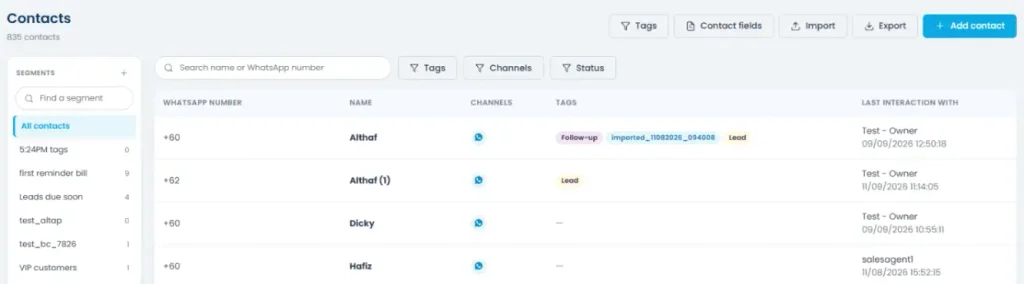
The Contacts page lists everyone in your workspace, with their WhatsApp number, name, connected channel, tags, and who last interacted with them.
Use the search bar or the Tags, Channels, and Status filters to narrow the list down. The tabs above the table are your saved segments, more on those below.
Tags
Tags are simple labels you can attach to contacts (e.g. “VIP customers”, “Follow-up”). Manage them from Tags in the toolbar.
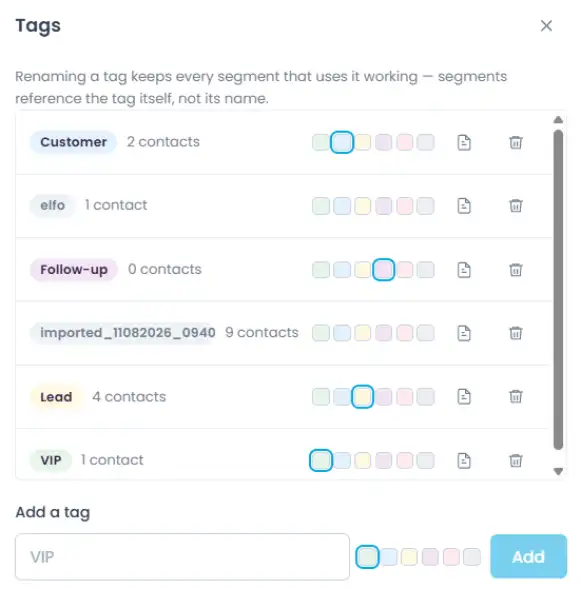
Renaming a tag keeps every segment that uses it working, since segments reference the tag itself, not its name. Renaming is always safe.
Deleting a tag permanently removes it from every contact that has it. This can’t be undone.
Contact fields
By default, a contact only has a WhatsApp number and Name. Everything else, like Status, Loan Amount, Due Date, Branch, or anything specific to your business,
is a custom field your team defines. Manage these from Fields in the toolbar.
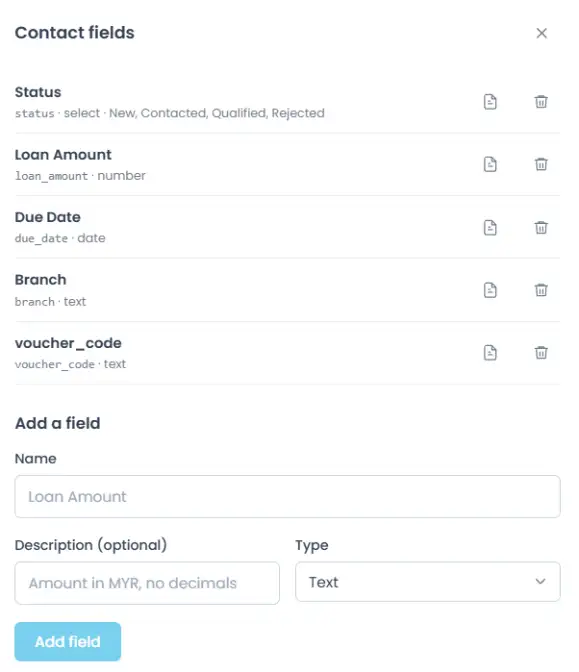
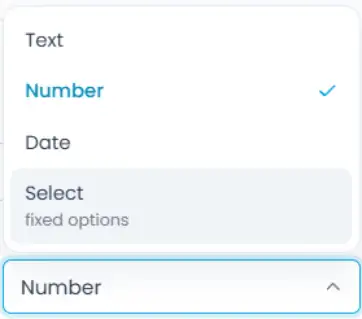
Each field has a Name, an optional Description (notes for your team on what to enter), and a Type: Text, Number, Date, or Select (a fixed list of options you define, e.g. Status: New, Contacted, Qualified, Rejected).
Deleting a field permanently removes its stored values from every contact, the contacts themselves stay, but their data for that field is gone. This can’t be undone.
Deleting or blocking a contact

Open a contact’s details (from Contacts or from within a conversation in Inbox) to delete or block them. Blocking stops them from messaging you; deleting removes their record entirely.
Adding a contact manually
Click + Add contact.
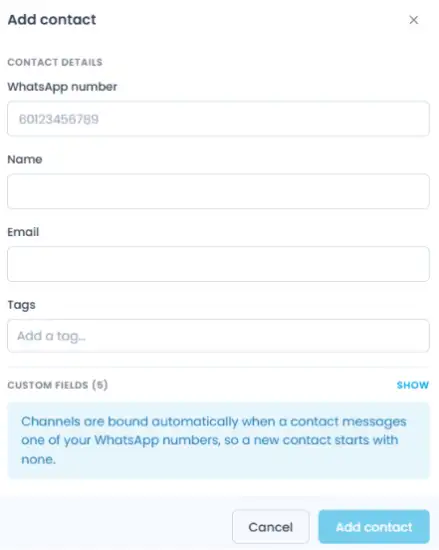
Only WhatsApp number is required, you can leave every other field (Name, Email, Tags, and any custom fields) blank and fill it in later.
Importing contacts
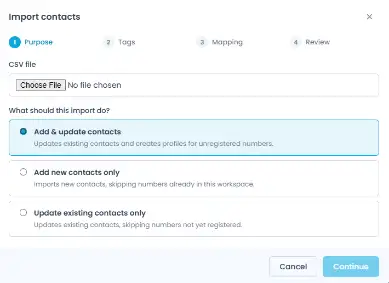
Click Import to bring in contacts from a CSV file.
Step 1: Purpose
Upload your file, and choose what the import should do:
Add & update contacts: updates existing contacts and creates profiles for numbers that aren’t in your workspace yet.
Add new contacts only: imports new contacts, skipping any numbers already in your workspace.
Update existing contacts only: updates existing contacts, skipping any numbers not yet registered.
Importing contacts
Click Import to bring in contacts from a CSV file.
Step 1: Purpose
Upload your file, and choose what the import should do:
Add & update contacts: updates existing contacts and creates profiles for numbers that aren’t in your workspace yet.
Add new contacts only: imports new contacts, skipping any numbers already in your workspace.
Update existing contacts only: updates existing contacts, skipping any numbers not yet registered.
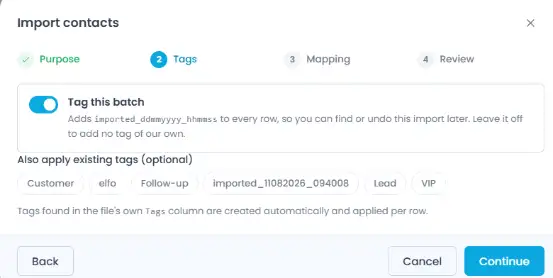
Step 2: Tags
Optionally tag this whole batch (so you can find or undo the import later), and apply any existing tags to every row.
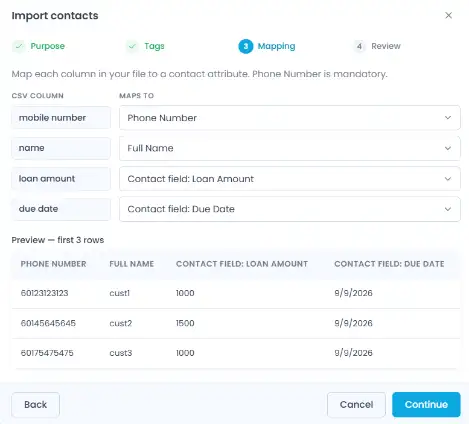
Step 3: Mapping
For each column in your file, choose which contact attribute it maps to (Phone Number, Full Name, Tags, or any custom field),
or mark it Not imported. A live preview shows the first few rows of your file so you can confirm the mapping looks right.
Step 4: Review
Check a summary before you commit, showing how many contacts will be added, updated, or skipped.
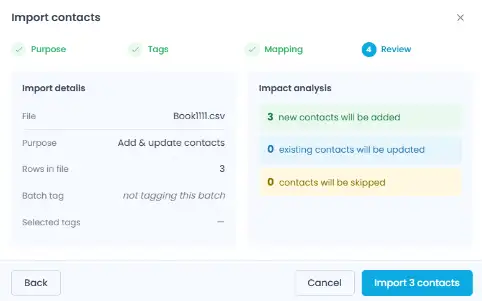
Exporting contacts
Click Export to download your contact list as a CSV file, with all contact details included.
Segments
A segment is a saved filter, a way to group contacts that match certain conditions so you can target them later (e.g. for a broadcast).
Step 1: Name your segment
Click + Segment, give it a name and an optional description.
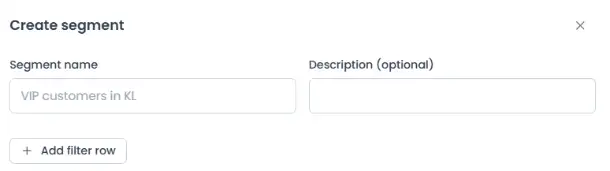
Step 2: Add your filters
Click + Add filter row. Each row lets you filter by:
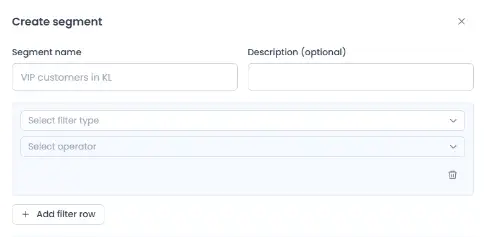
| Type | Operators | Value Input |
| Text | is equal to, is not equal to, contains, does not contain, exists, does not exist | Free text |
| Number | is equal to, is not equal to, greater than, less than, between, exists, does not exist | Number input (two, for “between”) |
| Date | is equal to, before, after, between, exists, does not exist | Date picker (a range picker for “between”) |
| Select | is equal to, is not equal to, has any of, has none of, exists, does not exist | Checklist of the field’s predefined options |
What each operator means:
is equal to / is not equal to: matches an exact value, or excludes it.
contains / does not contain: matches if the field’s text includes (or doesn’t include) what you type, useful for partial matches.
greater than / less than: matches numbers above or below a value.
before / after: matches dates earlier or later than a specific date.
between: matches values (numbers or dates) that fall within a range you set.
has any of / has all of / has none of: for a field or tag with multiple options checked, has any of matches contacts with at least one of them, has all of matches only if they have every one of them, and has none of matches contacts with none of them.
exists / does not exist: checks whether a contact has any value in that field at all, so these two don’t need a value input.
If you add a second filter row, a toggle appears so you can choose whether contacts need to match all rows or any row. With just one row, there’s nothing to combine, so the toggle stays hidden.
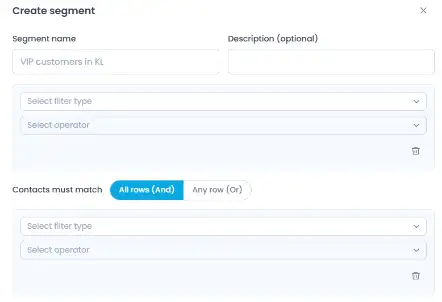
Step 3: Check the preview
As you build the filter, a live preview shows how many contacts match
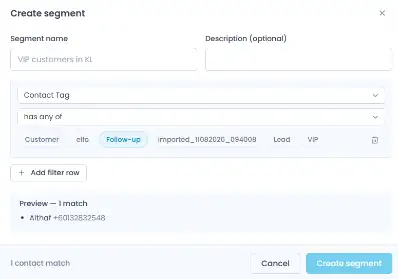
Once a segment is saved, you can also export just its contacts, select the segment’s tab above the contact list, then click Export segment
Billing and Pricing
- Home
- >
- Billing and Pricing
SMS Pricing
The pricing for SMS on elfoA2P is based on the destination and type of message you’re sending, as well as the carrier to which the SMS is being sent. Our pay-as-you-go pricing gives you control over your messaging costs, with discounts as you scale.
You can access the pricing page by clicking on the top menu “SMS Pricing”. You can search for the country from the search box at the SMS Pricing page on elfoA2P. Detailed SMS rates are listed in USD, MYR, and EUR for each country.
Below is a sample table for SMS rates by each country:
| Country | USD | EUR | MYR |
| Abkhazia | $0.20647 | €0.18876 | RM0.968 |
| Afghanistan | $0.20647 | €0.18876 | RM0.968 |
| Albania | $0.13758 | €0.12577 | RM0.645 |
| Algeria | $0.23698 | €0.21665 | RM1.111 |
| American Samoa | $0.1122 | €0.10257 | RM0.526 |
| Andorra | $0.16317 | €0.14918 | RM0.765 |
| Angola | $0.06378 | €0.05831 | RM0.299 |
| Anguilla | $0.09684 | €0.08853 | RM0.454 |
| Antigua and Barbuda | $0.07657 | €0.07 | RM0.359 |
| Argentina | $0.12755 | €0.11661 | RM0.598 |
| Armenia | $0.15038 | €0.13747 | RM0.705 |
| Aruba | $0.21159 | €0.19344 | RM0.992 |
| Australia | $0.05098 | €0.04661 | RM0.239 |
| Austria | $0.07657 | €0.07 | RM0.359 |
| Azerbaijan | $0.29051 | €0.26559 | RM1.362 |
| Bahamas | $0.08148 | €0.07449 | RM0.382 |
| Bahrain | $0.04074 | €0.03725 | RM0.191 |
| Bangladesh | $0.31867 | €0.29133 | RM1.494 |
| Barbados | $0.16317 | €0.14918 | RM0.765 |
| Belarus | $0.28305 | €0.25877 | RM1.327 |
| Belgium | $0.16573 | €0.15152 | RM0.777 |
| Belize | $0.18856 | €0.17238 | RM0.884 |
| Benin | $0.16061 | €0.14683 | RM0.753 |
| Bermuda | $0.09428 | €0.08619 | RM0.442 |
| Bhutan | $0.20903 | €0.1911 | RM0.98 |
| Bolivia | $0.12243 | €0.11193 | RM0.574 |
| Bosnia and Herzegovina | $0.12243 | €0.11193 | RM0.574 |
| Botswana | $0.07146 | €0.06533 | RM0.335 |
| Brazil | $0.04074 | €0.03725 | RM0.191 |
| Brunei Darussalam | $0.01792 | €0.01638 | RM0.084 |
| Bulgaria | $0.19112 | €0.17472 | RM0.896 |
| Burkina Faso | $0.09172 | €0.08385 | RM0.43 |
| Burundi | $0.14014 | €0.12812 | RM0.657 |
| Cambodia | $0.17597 | €0.16087 | RM0.825 |
| Cameroon | $0.14782 | €0.13514 | RM0.693 |
| Canada | $0.01621 | €0.01482 | RM0.076 |
| Cayman Islands | $0.08916 | €0.08151 | RM0.418 |
| Central African Republic | $0.03562 | €0.03257 | RM0.167 |
| Chad | $0.18344 | €0.1677 | RM0.86 |
| Chile | $0.0433 | €0.03959 | RM0.203 |
| China | $0.03306 | €0.03023 | RM0.155 |
| Colombia | $0.00768 | €0.00702 | RM0.036 |
| Comoros | $0.0689 | €0.06298 | RM0.323 |
| Congo | $0.06378 | €0.05831 | RM0.299 |
| Congo, Democratic Republic of | $0.15038 | €0.13747 | RM0.705 |
| Costa Rica | $0.0689 | €0.06298 | RM0.323 |
| Cote d’Ivoire | $0.16061 | €0.14683 | RM0.753 |
| Croatia | $0.09172 | €0.08385 | RM0.43 |
| Cuba | $0.13246 | €0.1211 | RM0.621 |
| Cyprus | $0.05098 | €0.04661 | RM0.239 |
| Czech Republic | $0.09684 | €0.08853 | RM0.454 |
| Denmark | $0.08404 | €0.07683 | RM0.394 |
| Djibouti, Republic of | $0.14782 | €0.13514 | RM0.693 |
| Dominica, Commonwealth of | $0.08916 | €0.08151 | RM0.418 |
| Dominican Republic | $0.08916 | €0.08151 | RM0.418 |
| Ecuador | $0.19368 | €0.17706 | RM0.908 |
| Egypt | $0.20647 | €0.18876 | RM0.968 |
| El Salvador | $0.06634 | €0.06065 | RM0.311 |
| Equatorial Guinea | $0.15294 | €0.13981 | RM0.717 |
| Eritrea | $0.14014 | €0.12812 | RM0.657 |
| Estonia | $0.11987 | €0.10959 | RM0.562 |
| Ethiopia | $0.22951 | €0.20982 | RM1.076 |
| Falkland Islands | $0.14014 | €0.12812 | RM0.657 |
| Faroe Islands | $0.05098 | €0.04661 | RM0.239 |
| Fiji | $0.12755 | €0.11661 | RM0.598 |
| Finland | $0.13502 | €0.12344 | RM0.633 |
| France | $0.11987 | €0.10959 | RM0.562 |
| French Guiana | $0.09599 | €0.08775 | RM0.45 |
| French Polynesia | $0.23698 | €0.21665 | RM1.111 |
| Gabon | $0.17853 | €0.16321 | RM0.837 |
| Gambia | $0.11732 | €0.10725 | RM0.55 |
| Georgia | $0.20647 | €0.18876 | RM0.968 |
| Germany | $0.16829 | €0.15386 | RM0.789 |
| Ghana | $0.17853 | €0.16321 | RM0.837 |
| Gibraltar | $0.0433 | €0.03959 | RM0.203 |
| Greece | $0.10452 | €0.09555 | RM0.49 |
| Greenland | $0.0433 | €0.03959 | RM0.203 |
| Grenada | $0.09172 | €0.08385 | RM0.43 |
| Guadeloupe | $0.09599 | €0.08775 | RM0.45 |
| Guatemala | $0.13011 | €0.11895 | RM0.61 |
| Guinea-Bissau | $0.12499 | €0.11427 | RM0.586 |
| Guyana | $0.05866 | €0.05363 | RM0.275 |
| Haiti | $0.16829 | €0.15386 | RM0.789 |
| Honduras | $0.07657 | €0.07 | RM0.359 |
| Hong Kong | $0.09428 | €0.08619 | RM0.442 |
| Hungary | $0.13246 | €0.1211 | RM0.621 |
| Iceland | $0.12243 | €0.11193 | RM0.574 |
| India | $0.0689 | €0.06298 | RM0.323 |
| Indonesia | $0.33893 | €0.30985 | RM1.589 |
| Iran | $0.14014 | €0.12812 | RM0.657 |
| Iraq | $0.23698 | €0.21665 | RM1.111 |
| Ireland | $0.11987 | €0.10959 | RM0.562 |
| Israel | $0.14014 | €0.12812 | RM0.657 |
| Italy | $0.12243 | €0.11193 | RM0.574 |
| Jamaica | $0.16829 | €0.15386 | RM0.789 |
| Japan | $0.12243 | €0.11193 | RM0.574 |
| Jordan | $0.25233 | €0.23069 | RM1.183 |
| Kazakhstan | $0.22951 | €0.20982 | RM1.076 |
| Kenya | $0.10196 | €0.09321 | RM0.478 |
| Kiribati | $0.19368 | €0.17706 | RM0.908 |
| Korea, Republic of | $0.04586 | €0.04193 | RM0.215 |
| Kuwait | $0.20647 | €0.18876 | RM0.968 |
| Kyrgyzstan | $0.24721 | €0.22601 | RM1.159 |
| Latvia | $0.10196 | €0.09321 | RM0.478 |
| Lebanon | $0.17853 | €0.16321 | RM0.837 |
| Lesotho | $0.12243 | €0.11193 | RM0.574 |
| Liberia | $0.09684 | €0.08853 | RM0.454 |
| Libya | $0.2421 | €0.22133 | RM1.135 |
| Liechtenstein | $0.05098 | €0.04661 | RM0.239 |
| Lithuania | $0.06378 | €0.05831 | RM0.299 |
| Luxembourg | $0.12243 | €0.11193 | RM0.574 |
| Macau | $0.04842 | €0.04427 | RM0.227 |
| Madagascar | $0.22951 | €0.20982 | RM1.076 |
| Malawi | $0.16829 | €0.15386 | RM0.789 |
| Malaysia | $0.02176 | €0.01989 | RM0.102 |
| Maldives | $0.05098 | €0.04661 | RM0.239 |
| Mali | $0.18856 | €0.17238 | RM0.884 |
| Malta | $0.10196 | €0.09321 | RM0.478 |
| Mauritius | $0.15806 | €0.1445 | RM0.741 |
| Mexico | $0.0433 | €0.03959 | RM0.203 |
| Micronsia (Federated States of) | $0.14014 | €0.12812 | RM0.657 |
| Moldova | $0.0994 | €0.09087 | RM0.466 |
| Monaco | $0.21415 | €0.19578 | RM1.004 |
| Mongolia | $0.17853 | €0.16321 | RM0.837 |
| Montenegro | $0.0866 | €0.07917 | RM0.406 |
| Montserrat | $0.09428 | €0.08619 | RM0.442 |
| Morocco | $0.14014 | €0.12812 | RM0.657 |
| Mozambique | $0.0689 | €0.06298 | RM0.323 |
| Myanmar | $0.19368 | €0.17706 | RM0.908 |
| Namibia | $0.06122 | €0.05597 | RM0.287 |
| Nepal | $0.19112 | €0.17472 | RM0.896 |
| Netherlands | $0.16829 | €0.15386 | RM0.789 |
| New Caledonia | $0.21415 | €0.19578 | RM1.004 |
| New Zealand | $0.15806 | €0.1445 | RM0.741 |
| Nicaragua | $0.08148 | €0.07449 | RM0.382 |
| Niger | $0.12755 | €0.11661 | RM0.598 |
| Nigeria | $0.20136 | €0.18408 | RM0.944 |
| Norway | $0.10708 | €0.09789 | RM0.502 |
| Oman | $0.14782 | €0.13514 | RM0.693 |
| Pakistan | $0.25489 | €0.23303 | RM1.195 |
| Palau | $0.09684 | €0.08853 | RM0.454 |
| Panama | $0.09428 | €0.08619 | RM0.442 |
| Papua New Guinea | $0.11987 | €0.10959 | RM0.562 |
| Paraguay | $0.0305 | €0.02789 | RM0.143 |
| Peru | $0.07402 | €0.06767 | RM0.347 |
| Philippines | $0.07657 | €0.07 | RM0.359 |
| Poland | $0.0561 | €0.05129 | RM0.263 |
| Portugal | $0.05354 | €0.04895 | RM0.251 |
| Puerto Rico | $0.04586 | €0.04193 | RM0.215 |
| Qatar | $0.04586 | €0.04193 | RM0.215 |
| Reunion | $0.17597 | €0.16087 | RM0.825 |
| Romania | $0.10708 | €0.09789 | RM0.502 |
| Russian Federation | $0.14526 | €0.1328 | RM0.681 |
| Rwanda, Republic of | $0.14526 | €0.1328 | RM0.681 |
| Saint Kitts and Nevis | $0.09172 | €0.08385 | RM0.43 |
| Saint Lucia | $0.08916 | €0.08151 | RM0.418 |
| Saint Pierre and Miquelon | $0.12755 | €0.11661 | RM0.598 |
| Saint Vincent and The Grenadines | $0.09172 | €0.08385 | RM0.43 |
| Samoa | $0.09172 | €0.08385 | RM0.43 |
| Sao Tome and Principe | $0.18109 | €0.16556 | RM0.849 |
| Saudi Arabia | $0.10708 | €0.09789 | RM0.502 |
| Senegal | $0.21671 | €0.19812 | RM1.016 |
| Serbia | $0.05866 | €0.05363 | RM0.275 |
| Seychelles | $0.1427 | €0.13046 | RM0.669 |
| Sierra Leone | $0.1427 | €0.13046 | RM0.669 |
| Singapore | $0.06634 | €0.06065 | RM0.311 |
| Slovakia | $0.11987 | €0.10959 | RM0.562 |
| Slovenia | $0.0433 | €0.03959 | RM0.203 |
| Solomon Islands | $0.08916 | €0.08151 | RM0.418 |
| Somalia | $0.15294 | €0.13981 | RM0.717 |
| South Africa | $0.03562 | €0.03257 | RM0.167 |
| South Sudan | $0.10452 | €0.09555 | RM0.49 |
| Spain | $0.10708 | €0.09789 | RM0.502 |
| Sri Lanka | $0.22951 | €0.20982 | RM1.076 |
| Sudan | $0.18109 | €0.16556 | RM0.849 |
| Suriname | $0.0689 | €0.06298 | RM0.323 |
| Sweden | $0.09428 | €0.08619 | RM0.442 |
| Switzerland | $0.0866 | €0.07917 | RM0.406 |
| Syria | $0.09599 | €0.08775 | RM0.45 |
| Taiwan | $0.08148 | €0.07449 | RM0.382 |
| Tajikistan | $0.32123 | €0.29367 | RM1.506 |
| Tanzania | $0.15038 | €0.13747 | RM0.705 |
| Thailand | $0.02304 | €0.02106 | RM0.108 |
| Timor-Leste | $0.15294 | €0.13981 | RM0.717 |
| Togo | $0.06122 | €0.05597 | RM0.287 |
| Tonga | $0.10452 | €0.09555 | RM0.49 |
| Trinidad and Tobago | $0.14014 | €0.12812 | RM0.657 |
| Tunisia | $0.20136 | €0.18408 | RM0.944 |
| Turkey | $0.00768 | €0.00702 | RM0.036 |
| Turkmenistan | $0.22183 | €0.2028 | RM1.04 |
| Turks and Caicos Islands | $0.07657 | €0.07 | RM0.359 |
| Uganda | $0.17853 | €0.16321 | RM0.837 |
| Ukraine | $0.22951 | €0.20982 | RM1.076 |
| United Arab Emirates | $0.04842 | €0.04427 | RM0.227 |
| United Kingdom | $0.0689 | €0.06298 | RM0.323 |
| United States | $0.01024 | €0.00936 | RM0.048 |
| Uruguay | $0.0994 | €0.09087 | RM0.466 |
| Uzbekistan | $0.22439 | €0.20514 | RM1.052 |
| Vanuatu | $0.10964 | €0.10023 | RM0.514 |
| Venezuela | $0.08148 | €0.07449 | RM0.382 |
| Vietnam | $0.12243 | €0.11193 | RM0.574 |
| Virgin Islands, British | $1.49886 | €1.37027 | RM7.027 |
| Wallis and Futuna Islands | $0.09599 | €0.08775 | RM0.45 |
| Yemen | $0.16061 | €0.14683 | RM0.753 |
| Zambia | $0.17085 | €0.1562 | RM0.801 |
| Zimbabwe | $0.18344 | €0.1677 | RM0.86 |
| Cook Islands | $0.03413 | €0.0312 | RM0.16 |
| Guinea | $0.21159 | €0.19344 | RM0.992 |
| Kosovo | $0.06122 | €0.05597 | RM0.287 |
| Laos | $0.07913 | €0.07235 | RM0.371 |
| Mauritania | $0.12286 | €0.11232 | RM0.576 |
| Cape Verde | $0.05908 | €0.05402 | RM0.277 |
| Macedonia | $0.0561 | €0.05129 | RM0.263 |
| Marshall Islands | $0.24977 | €0.22835 | RM1.171 |
| Nauru | $0.12243 | €0.11193 | RM0.574 |
| Netherlands Antilles (dissolved) | $0.14014 | €0.12812 | RM0.657 |
| San Marino | $0.10964 | €0.10023 | RM0.514 |
| Swaziland | $0.0433 | €0.03959 | RM0.203 |
Taking Control of Your Messaging Costs
With elfoA2P, you can easily manage and monitor your SMS messaging costs. Our transparent pricing allows you to plan your campaigns effectively and optimize your messaging strategy. As you scale your usage, you can benefit from discounts to further reduce your costs.
For more information on our SMS pricing or assistance with your messaging needs, please feel free to contact our support team. We’re here to help you get the most out of your SMS campaigns on elfoA2P.
Buy Credits for SMS
Buy Credits
To send messages via elfoA2P, you need to purchase messaging credits. Here’s how you can do it:
- Click on the “UPGRADE” button at the top menu. This will take you to the Upgrade page or Buy Credits page.
- Select the amount of credit you would like to add to your account. You can select from the predefined amounts listed on the page or specify an amount of your own choice in the Custom Amount field.
- Once you’ve selected the amount, click Payable Amount [RM].
Select Your Payment Method
elfoA2P accepts the following payment methods:
- FPX: Financial Process Exchange is a Malaysian-based online payment system that allows individuals and businesses to make real-time payments using their bank credentials.
- Card: Customers can pay for their purchases with their debit or credit card.
Select your preferred payment method and enter the requested payment information.
Confirm Your Billing Information
Next, you’ll be asked to confirm your billing information:
- Enter the requested billing information.
- Once you’re satisfied that your billing information is correct, click PAY.
The Summary section shows the total amount that you must pay, including taxes which are dependent on the country of billing.
Please note that your payment will be taken securely via Stripe and your information is protected by 256-bit SSL encryption.
Click COMPLETE PAYMENT to confirm the payment.
You will be redirected to additional payment pages related to the selected payment method. For example, for credit card payments, you will be redirected through Stripe to your credit card’s 3D security pages.
Follow the on-screen instructions to complete your payment. Once the payment has been processed, a confirmation message will be displayed and an email confirmation will be sent to your registered email address.
Once your account has been successfully upgraded, your account balance will be credited by your chosen amount. You can keep track of your payments and view receipts on the Payment history page.
If you have any questions, feel free to reach out to us. Happy messaging with elfoA2P!
Billing Log
The Billing Log is a crucial part of our platform that helps you keep track of your credit purchases and payments. The Billing Log provides a detailed overview of your payment history and credits purchased on elfoA2P. Here’s what you can find in this section:
- Status: This shows whether the credits have been topped up and paid to elfoA2P.
- Date and Time: This indicates when the payment was made to elfoA2P for the purchase of credits.
- Invoice: In the Invoices tab, you can view and download all the invoices generated by elfoA2P for your organization’s payments at elfoA2P. You can also see the status of each invoice, such as Paid or Unpaid, and view the details of the charges included in each invoice.
- Amount: This is the payment made for credits purchased at elfoA2P.
- Amount (Inclusive SST): This shows the SST rate added to the amount of credit purchased.
- Total Credits: Total credits are calculated at the base price of SMS credits purchased minus the discount offered to the user, added with the service tax (SST).
- Top Up (Action): The Billing Log page allows the user to jump to the Buy Credit dashboard to top-up credits.
Invoice
The Invoice section provides detailed information about your credit purchases. Here’s what each field represents:
- Name: The legal name of your organization that will be used for invoicing.
- Address: If selected, the billing address will automatically be filled in with the address from your business profile.
- Invoice Date: The date when the successful payment was made via the payment gateway to upgrade credits.
- Description: Details of the order made for the purchase of credits at elfoA2P.
- Unit Price: The amount per order placed during checkout.
- Discount Rate: The percentage of discount given to the customer for the order placed.
- Base Price: The amount per order placed during checkout.
- Discount Amount: The total value of the discount given to the customer for the order placed.
- Subtotal: The base price minus the discount amount.
- Service Tax: The service tax added to the subtotal for the purchase of credits.
- TOTAL Amount: The total amount is calculated at the base price of SMS credits purchased minus the discount offered to the user, added with the service tax (SST).
- Invoice Number: ElfoA2P assigns an invoice number for all SMS credits purchases made from the platform.
- Elfo Sdn Bhd Salesperson and Elfo Address: The name of the person assigned to your account, whom you can contact for further inquiries or product-related assistance with address of the elfo office.
Campaign Cost
The Campaign Cost dashboard is a crucial part of our elfoA2P platform that helps you keep track of your campaign costs and details. By utilizing the Campaign Cost dashboard, you can effectively monitor and manage the costs associated with your SMS campaigns on elfoA2P. Here’s what you can find in this section:
- Start Date – End Date: This is a date picker that lets you choose the range of dates or period for which you want to view the campaign costs.
- Campaign Select: This feature allows you to select one or more campaigns from the list to view their cost details.
Campaign Cost Dashboard
This section provides detailed information about each campaign. Here’s what each field represents:
- Campaign Name: This displays the name of the selected campaign(s) for which you want to view cost details.
- Country: This indicates the destination country where the campaign was run by the user.
- SMS Price: This is the price per SMS as per the location selected for the campaign.
- Total SMS: This shows the total number of SMS sent to contacts during the campaign.
- Total Cost: This is the total cost of SMS which is equal to the total number of SMS sent multiplied by the cost per SMS unit.
- Date: This shows the date and time when the campaign was scheduled at elfoA2P.
Actions
This section provides actions that you can perform on the Campaign Cost dashboard:
- Reset: Clicking on Reset will clear your date and campaign selections on the Campaign Cost dashboard.
- Export to Excel: This action allows you to export the details of campaign costs by a custom selection of range chosen as per duration and campaign(s) selected.
Account Settings
- Home
- >
- Account Settings
Getting Started with Account settings
- Profile
- Users
- Linked Accounts
- Security
- Having issues?
Profile: Personalize Your Presence
Profile shows a summary of your name and email address. You can click on your username to go to Personal Settings, where you can edit more details about your profile.
User Profile Page:
User Profile Page is where you can update your profile information, such as your name, email, phone number, time zone, and default currency. You can access User Profile Page by clicking on your profile image or name at home page > Account Settings > Profile.
Profile Avatar or Image:
You can change your profile avatar or image by clicking on it. You can upload a new image from your device or choose from the default avatars.
Profile Information:
You can edit the following information on your profile:
- First Name & Last Name: You can change your first and last name. Your name will be displayed to your team and contacts, so make sure you use an appropriate name.
- Email Address: You can change your email address. This is the email you use to log in to elfoA2P and receive notifications and alerts. You will need to verify your new email address before it is updated.
- Phone Number: You can add or change your phone number. This is the number you can use to send and receive SMS messages through elfoA2P. You will need to verify your phone number before it is activated.
- Time Zone: You can select your time zone from the drop-down menu. This will affect how the date and time are displayed on your dashboard and reports.
- Default Currency: You can select your default currency from the drop-down menu. This will affect how the prices and billing are displayed on your dashboard and invoices.
Users: Efficient Credit Management
The users page shows a list of users who are linked to your account. You can add, edit, or delete users, as well as manage their roles. You can access Users by clicking on Account Settings > Users.
The roles of the linked accounts are listed on the user’s page. ElfoA2P allow two roles for linked accounts:
Roles:
- Owner: The primary account in charge of comprehensive credit management.
- Manager: Account listed as “Manager’ are sub-accounts efficiently managed by the owner.
The Users page streamlines credit management for linked accounts
- Add New User: You can add a new user as a sub-account or a manager. A sub-account is a user who can send and receive SMS messages using the credits received from the owner account but cannot access your billing or account settings of owner account.
Step 1: To add a new user, click on the “+Add User” button. A form will appear where you can enter the new user’s email and name.
Step 2: You can select the role of the new user, either owner or manager.
Step 3: Click on “Add” to send an activation email to the new user. The new user will receive an email with a link to activate their account. They will need to create an account and agree to the terms and conditions before they can log in to elfoA2P. The new user will be listed as “Pending Activation” until they complete the activation process. - Delete User: You can edit or delete an existing user by clicking on the “Delete user” button under options next to their name. You also can change their name, email, role, or status. You can also delete the user from the Linked account or unlink the account as owner. Note that deleting a user will remove their access to owner elfoA2P, but their main account will remain as it is. Sub-account users can access their account.
- Make Owner: Owner can list another sub-account manager as owner to manage credits transfer for other managers or sub-accounts.
Linked Accounts: Central Hub for Credit Management
Linked Accounts shows a list of accounts that are linked to your account. Owner can add/remove the sub-account to the linked account dashboard. The owner will be able to manage credits transfer with sub-account. Discover seamless credit management through the Linked Accounts feature.
- Account Details: Gain insights into accounts, roles, total credits, available credits, and credit transfer history.
- Credit Transfer History: Track dates and amounts of credit transfers.
Managing Credits Transfer:
Click “Transfer Credits” to Initiate credit transfers securely. Only owners can transfer credits to sub-accounts.
Buy Credits:
Owners can effortlessly top up credits by clicking “Buy Credits,” guiding them to the credit purchase page.
Security: Safeguard Your elfoA2P Account
Ensure your account’s safety with our dedicated Security settings. Security shows your security settings and preferences. You can change your password by clicking on the “Change Password” button. You will need to enter your current and new password and confirm it. You will need to log in with your new password the next time you access elfoA2P
You can access Security by clicking on Account Settings > Security.
Resetting Your Password:
Login Page:
- Press “Forgot Password” on the login window.
- Enter your email, and press RESET.
- Check your inbox for the reset link.
- Reset your password to regain access, following password security requirements.
Security Page:
- Navigate to the Security page.
- Enter existing and new passwords.
- Retype your password for verification.
- Press SAVE to apply changes, adhering to password security requirements.
Password Security Requirements:
- Contains at least 8 characters.
- Includes at least 1 number.
- Contains at least 1 special character.
- Includes at least 1 uppercase letter.
- Contains at least 1 lowercase letter.
Account Verification: Secure and Compliant Messaging
To send bulk SMS through elfoA2P, account verification is crucial for a secure and compliant messaging environment. Account Verification shows your verification status and documents. You may need to verify your account to comply with the regulations and policies of elfoA2P and its partners. Verification will also allow you to access more features and benefits, such as higher sending limits, lower rates, and premium support.
To verify your account, click on the “Verify Account” button. You will need to provide some information about yourself and your business, such as your name, address, phone number, and industry. You will also need to upload some documents to prove your identity and address, such as your passport, driver’s license, or utility bill. The documents should be clear, legible, and valid.
- Fill in Company Details: Provide essential information such as Company Name, Email, Address, and Registration Number.
- Details of Person In-Charge: Add the contact details of the person responsible for verification.
- Upload Documents (Optional): Submit documents like the Company Registration Certificate and ASP License in PDF format.
- User Declaration: Agree to terms, conditions, and accuracy of information.
- Pending Verification: Your submission is under review. Expect an email confirmation within 1-2 working days.
- Account Verified: Once verified, receive a confirmation email and start using A2P SMS services.
Once you submit your verification request, our team will review your information and documents and get back to you within 24-48 hours (about 2 days). You will receive an email notification when your verification is approved or rejected. You can also check your verification status on your dashboard.
Denied Verification:
- Account Verification Denied: If denied, contact [email protected]. Use the “Update Verified Application” button for corrections or document re-submission.
Congratulations on unlocking the full potential of your elfoA2P Account Settings. For further assistance or faster verification, drop us a message. Happy messaging!
SMS Insights
- Home
- >
- SMS Insights
Getting Started with SMS Insights
Introducing elfoA2P SMS Insights
Unlock the power of data with elfoA2P Insights, providing comprehensive usage analytics for SMS. Take control of your data, stay informed, and enhance your engagement through a user-friendly dashboard. In this guide, we’ll delve into the key features, capabilities, and the process of creating and viewing custom reports.
At elfoA2P, streamline your SMS campaign management experience with our robust SMS analytics dashboard. This feature-rich dashboard provides you with the tools to effortlessly oversee and enhance your SMS campaigns.
SMS Campaign Overview
elfoA2P Campaign Overview: A Comprehensive Guide
At elfoA2P, campaign management becomes seamless with our powerful Campaign
Overview dashboard. This feature-packed dashboard empowers you to monitor and optimize your SMS campaigns effortlessly. In this guide, we’ll explore the key features, actions, and insights provided by the Campaign Overview, offering you complete control and valuable insights into your SMS campaigns. Explore the possibilities and elevate your SMS marketing experience today!
You can access this module by selecting campaign overview under SMS insights from the side navigation menu.
Explore elfoA2P Campaign Overview Features:
SMS Campaign Fields
The following is a description of what each column represents:
| Field | Description |
| Status | Indicates the real-time status updates of the SMS campaign. Whether it’s in Draft, Scheduled, In Progress, Completed, Failed, or Incomplete, the Campaign Status provides a quick overview. |
| Campaign Name | Identify your campaigns easily with the Campaign Name, reflecting the title entered during the campaign creation in the SMS campaign builder. |
| Campaign ID | Each campaign is assigned a unique Campaign ID, making it easy to reference and manage in the elfoA2P account. |
| Type | Distinguish between various campaign types, such as SMS campaigns or quick SMS blasts, for streamlined campaigns organization. |
| Contact List/Contacts | Indicates the Contact list which has been uploaded at the elfoA2P portal |
| Contact Segment | Indicates the Segment (a set of Contacts) which has been selected for a particular SMS campaign. |
| Created Time | Track the time of campaign creation, helping you maintain a chronological view of your campaigns. |
| Scheduled Time | For scheduled SMS campaigns, the Scheduled Time feature displays the designated time for campaign deployment. |
| Total SMS Sent | Get insights into the actual total number of SMS messages sent for a particular campaign, aiding in performance evaluation. |
| Actions | Indicates the icon to open the Action menu |
| Export to Excel | Effortlessly export the selected campaign’s details to an Excel file, including all the fields listed in the Campaign Overview. |
| Duration | Choose the campaign duration with a convenient drop-down menu, allowing you to filter campaigns for the 1 Month, 3 Months, 6 Months and 12 Months. |
Campaign Status:
SMS campaign statuses can be found on the left side. Clicking on each status will display broadcasts according to their status.
SMS campaigns may have different statuses based on their position in the process. The possible statuses for a broadcast are:
| Status | Description |
| Draft | By default, a campaign is created in draft status and remains in draft until it is Scheduled, In-progress or sent. |
| Scheduled | This refers to a campaign that has been scheduled to be sent at a future date. If the broadcast is canceled, it reverts back to Draft status. |
| In Progress | Ongoing campaign messages are being sent. |
| Completed | The campaign will be marked as completed if all messages have been sent. All broadcast messages have been attempted to be sent. It is possible some messages were not delivered due to limitations on the Channel side. |
| In-Complete | The campaign will be marked as incomplete if the user force stops the campaign. Some SMS have been attempted to be sent. It is possible some messages were not delivered after the user stops the In-progress campaign. |
| Failed | The campaign attempt has failed. |
SMS Campaign Details Drawer:
Clicking on an SMS campaign will open the Broadcast Details Drawer. This will display all relevant information about the broadcast created.
If a SMS campaign fails, the reason for the failure will be displayed in red text at the top of the Broadcast Details Drawer. Possible reasons include blacklist words, brand names, or incorrect phone number formats. Review and address these issues to proceed.
| Field | Description |
| Delivery Time | Date and time of the SMS campaign that has been sent. |
| Scheduled Time | Date and time of the SMS campaign that has been scheduled to be sent. |
| Contact Segment | Target contact segment (a set of Contacts) selected to receive the Broadcast |
| Total SMS Count | The number of SMS sent to contact segment |
| Total Messages Sent | This usually refers to the total number of complete messages sent, regardless of how many individual SMS segments they were split into. |
Analytics
| Field | Description |
|---|---|
| Delivered | The “Delivered” status indicates that the SMS message has successfully reached the recipient’s mobile device. |
| Sent | The “Sent” status indicates that the SMS message has been dispatched from the elfoA2P’s platform to the mobile carrier/Vendor platform for delivery. |
| Enqueued | The “Enqueued” status indicates that the SMS message is in a queue, waiting to be sent. |
| Failed | The “Failed” status indicates that the SMS message delivery was unsuccessful. |
Cost
| Field | Description |
|---|---|
| Per SMS Cost | The “Per SMS Cost” refers to the cost incurred for sending a single SMS message (less than 160 character for GSM encoding and less than 70 characters for Unicode encoding) in the SMS campaign in the SMS campaign. |
| Total Cost | The “Total Cost” represents the overall cost incurred for the entire SMS campaign. |
| Message Preview | Shows the message content. |
SMS Campaign Actions:
| Action | Description |
| Edit | Modify saved draft campaigns or edit scheduled campaigns directly from the Campaign Overview. |
| Duplicate | Create a copy of the campaign, saving it as a new draft for further editing/modification in the SMS campaign builder. |
| Delete | Remove draft or scheduled campaigns from the Campaign Overview. |
| View | Access a detailed campaign summary with real-time insights, including delivery time, Contact Segment, Total SMS Sent, Total Messages, analytics (Delivered, Sent, Enqueued, Failed), and cost details. |
| Resume | Resume an incomplete SMS campaign from the point where it was stopped. |
| Stop | Halt an ongoing campaign to cease SMS delivery. |
Create Campaign:
On the A2P SMS platform’s Campaign Overview page, there’s a button “+ Create Campaign” that takes you directly to the Campaign Builder page. Here, you can easily start creating a new SMS campaign, defining your target audience, message content, and scheduling details. This feature enhances efficiency and user experience in managing SMS campaigns.
Pagination:
Efficiently manage your campaigns with the pagination drop-down, allowing you to select the number of campaigns displayed per page.
SMS Analytics
elfoA2P SMS Analytics: A Comprehensive Guide
This module provides more detailed insights into your SMS campaign’s performance on the platform and helps businesses to make informed decisions based on information gathered through the platform. Discover the potential and enhance your SMS marketing journey with us today!
Data shown in the reports are according to the Time zone selected by user in the account settings. So, before you analyze the report, please ensure that you have set your preferred time zone.
You can access this module by selecting SMS Analytics under SMS insights from the side navigation menu.
Explore elfoA2P SMS Analytics Features:
Let’s explore the key features of the SMS Campaign Analytics dashboard:
Select Campaign Filter:
Effortlessly navigate through your various campaigns with the Select Campaign tab. This drop-down menu allows you to choose a specific campaign, providing detailed insights tailored to the selected SMS marketing initiative. Whether you’re tracking the success of a promotional campaign or monitoring a transactional series, this feature ensures you have the right data at your fingertips.
Select Country:
Tailor your analysis to specific regions by utilizing the Select Country drop-down menu. Understand how your SMS campaigns resonate with audiences in different countries. This granular view empowers you to optimize content, timing, and targeting for diverse geographical locations, maximizing the impact of your campaigns.
Select Date:
Flexibility is key, and the Select Date Range Filter offers just that. Customize your analysis by choosing a specific date range. Whether you’re evaluating the performance of a recent campaign or assessing long-term trends, this feature allows you to align insights with your unique reporting needs.
Reset Button:
Sometimes, a fresh start is all you need. The Reset Button instantly returns the dashboard to its default settings, streamlining your user experience. Start anew with a clean slate, ready to explore different campaigns, countries, and date ranges.
Download Button
Turn insights into action with the Download Button. Generate comprehensive reports for the selected campaign, country, and date range with a simple click. Export valuable data to share with your team, incorporate into presentations, or archive for future reference. The Download Button ensures you have tangible results at your disposal.
Overall Delivery Rate:
Gain a holistic view of your campaign’s success with the overall delivery rate in the pie-chart. This metric provides the number of successfully delivered SMS, undelivered SMS, failed SMS compared to the total number of SMS sent, offering a quick snapshot of your campaign’s effectiveness.
SMS Status per Country:
Dive deeper into campaign performance by exploring SMS status breakdowns per country. Understand how many messages were sent, delivered, undelivered, or failed in each specific region. This granular data allows for targeted improvements in your campaign strategy.
Sent: Total number of SMS sent.
Delivered: Number of SMS successfully delivered.
Undelivered: SMS that couldn’t be delivered.
Failed: SMS delivery attempts that ended in failure. Unable to deliver; possible reasons include incorrect or non-existent mobile numbers.
Total Cost: The overall cost incurred for the campaign.
Total Transactions: Complete overview of all transactions related to the campaign.