Reports
- Home
- >
- Reports
Getting started with Reports
Reports gives you visibility into conversation and broadcast performance. There are two views: Chats Report and Broadcast Report.
Use the date range buttons (7d, 30d, 90d, or Custom) and the All channels dropdown to scope the data, then Show data to refresh the view. Export downloads the current report.
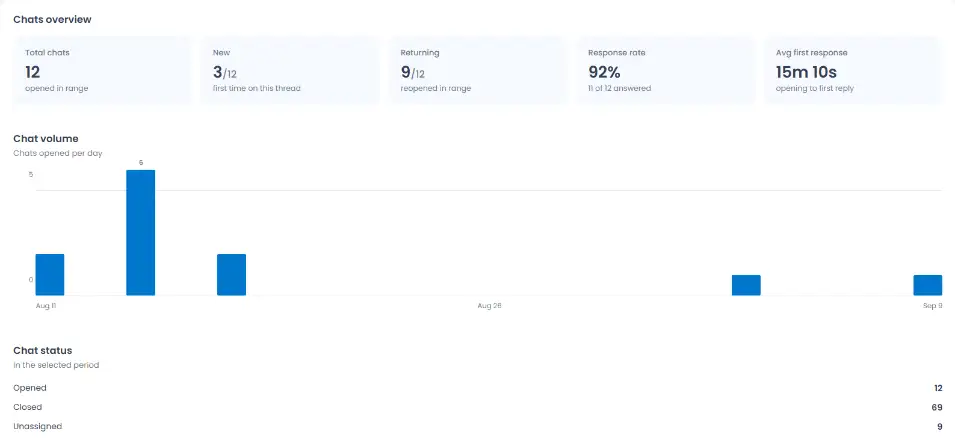
Chats Report
Chats overview
Total chats: how many conversations opened in the selected range
New: how many were a contact’s first time on this thread
Returning: how many were a contact reopening an existing thread
Response rate: the percentage of chats that received a reply
Avg first response: the average time between a chat opening and the first reply
Below that, a Chat volume chart shows chats opened per day, and Chat status breaks down how many chats are currently Opened, Closed, or Unassigned.
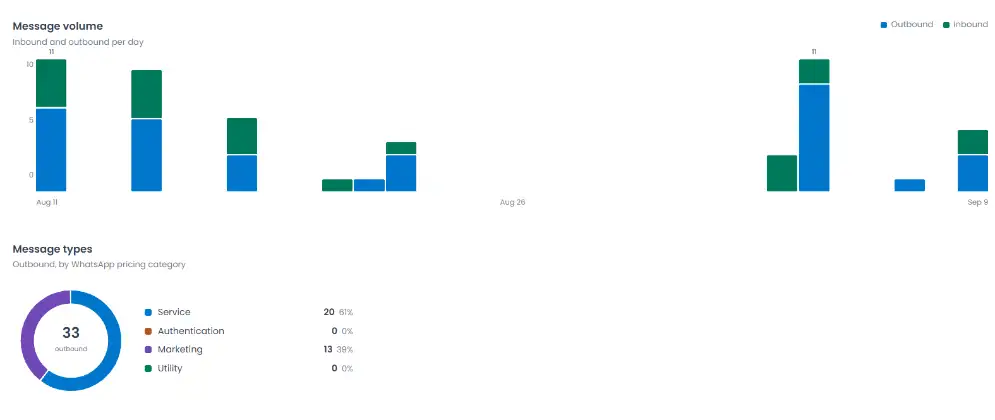
Messages overview
While the Chats overview counts conversations, Messages overview counts individual messages within those conversations

Total messages: everything sent and received
Inbound: messages from customers
Outbound: messages you sent, with a delivery percentage
A Message volume chart shows inbound vs. outbound messages per day, and Message types breaks outbound messages down by WhatsApp pricing category: Service, Authentication, Marketing, and Utility.
Team Performance Overview

A table showing, per agent: how many chats they handled, messages sent and received, and their average reply time.
Broadcast Report
Like Chats Report, use the date range buttons (7d, 30d, 90d, or Custom) and the All channels dropdown to scope the data, and Export to download it.
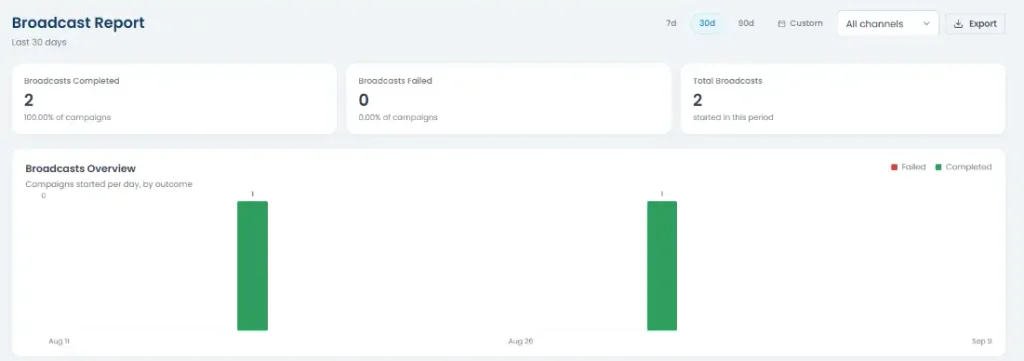
At the top: Broadcasts Completed and Broadcasts Failed (each shown as a count and a percentage of total campaigns),
and Total Broadcasts started in the period. Below that, a chart shows campaigns started per day, colored by outcome.

The table above lists every broadcast in the period: initiated time, broadcast name, channel, template used, segment, total recipients, total messages sent, and status.
Click Download report on any row to get a CSV with per-recipient detail