Quick Start
- Home
- >
- Quick Start
Connecting your WhatsApp channel
Before you can send or receive a single message, you’ll need to bring a WhatsApp number into your workspace. Go to Channel and click Connect. You’ll see two options:
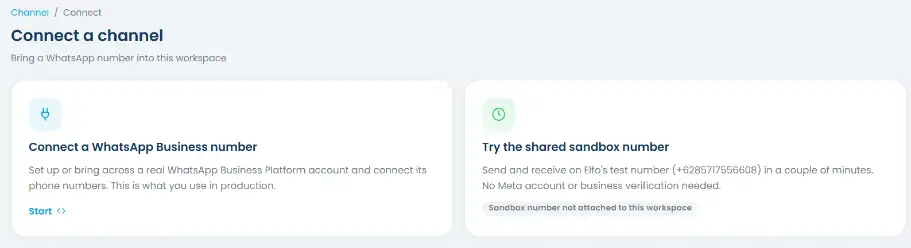
Connect a WhatsApp Business number: set up or bring across a real WhatsApp Business Platform account. This is what you’ll use in production.
Try the shared sandbox number: send and receive on Elfo’s test number in a couple of minutes. No Meta account or business verification needed, a good way to explore the platform before you connect your own number.
Step 1: Choose your method
If you’re connecting a real number, you’ll be asked whether you’re setting up a NEW WhatsApp Business Platform account or connecting an EXISTING one. If you already know what you’re doing, you can skip straight to Continue with Facebook.
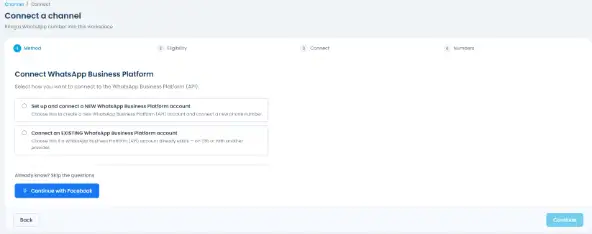
Step 2: Authorize with Facebook
Clicking Continue with Facebook opens Meta’s own login and consent screen. Here, you authorize Elfo to manage your WhatsApp assets on your behalf.
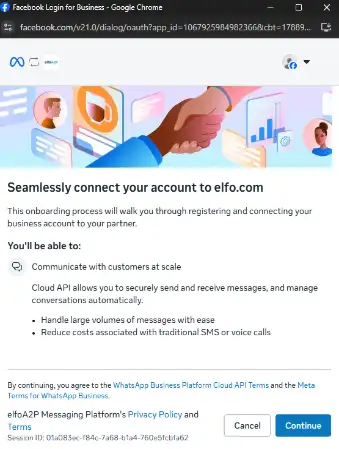
Step 3: Add your number
From there, Meta walks you through adding your phone number, either entering a new number or selecting one already registered to your Business Portfolio.
Understanding your workspace
Everything in the platform lives inside a workspace. A workspace can connect multiple WhatsApp channels, and every user, team, contact, and broadcast belongs to that workspace.
Roles
There are three roles, each with a different level of access:
| Owner | Manager | Agent | |
| Inbox | Full access | Full access | Full access |
| Contacts | Full access | Full access | Full access |
| Broadcast | Full access | Full access | No access |
| Reports | Full access | Full access | No access |
| Channel | Full access | Submit & edit templates only | No access |
| Billing | Full access | No access | No access |
| Company Settings | Full access | No access | No access |
| Team & Users | Full access | Limited to own team | No access |
| Personal Settings | Full access | Full access | Full access |
Owner: has full control over the workspace. Owners connect channels, manage billing, create teams, and manage everyone’s access.
Manager: runs day-to-day operations. Managers handle the inbox, contacts, broadcasts, and reports, and manage members within their own team.
Agent: handles conversations and contacts on the channel(s) their team has access to.
Teams
You can organize a workspace into teams (e.g. “CS Team”, “Sales Team”). Each team gets:
One or more WhatsApp channels
A set of members (Managers and Agents)
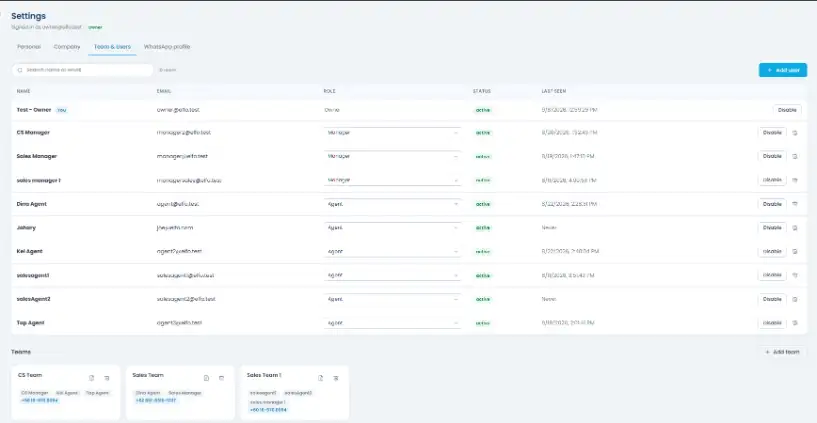
Members only see the channels assigned to their team, so a Sales agent won’t see CS conversations and vice versa. A single team isn’t limited to one channel, you can assign as many as you need.
Only the Owner can create teams and assign channels to them. Managers can add or remove Agents within their own team, but they can’t create new teams or reassign channels.
Inviting your Teammates
Step 1: Send the invite
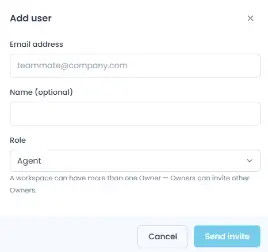
Go to Settings > Team & Users and click + Add user. Enter the person’s email, they’ll receive an invitation to join your workspace.
Step 2: Set their role
Once they’ve accepted, use the Role dropdown next to their name to set them as Manager or Agent.
Step 3: Add them to a team
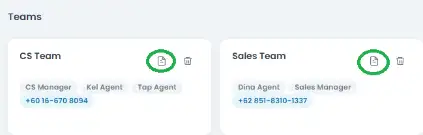
Scroll down to the Teams section and either create a new team or edit an existing one to include them. Click + Add team,
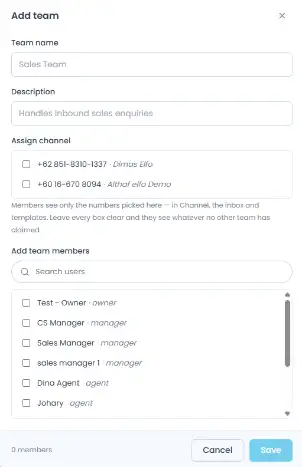
or the edit icon on a team card, then check off the teammate under Add team members.
A teammate only sees the channel(s) assigned to their team, so make sure they’re added to the right one.