Contacts
- Home
- >
- Contacts
Getting started with Contacts
Contacts is where you manage everyone your workspace can message: their details, tags, custom data, and the segments you build from them.
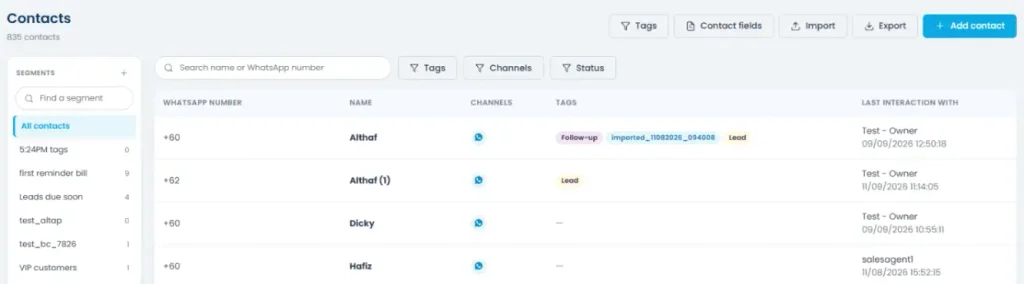
The Contacts page lists everyone in your workspace, with their WhatsApp number, name, connected channel, tags, and who last interacted with them.
Use the search bar or the Tags, Channels, and Status filters to narrow the list down. The tabs above the table are your saved segments, more on those below.
Tags
Tags are simple labels you can attach to contacts (e.g. “VIP customers”, “Follow-up”). Manage them from Tags in the toolbar.
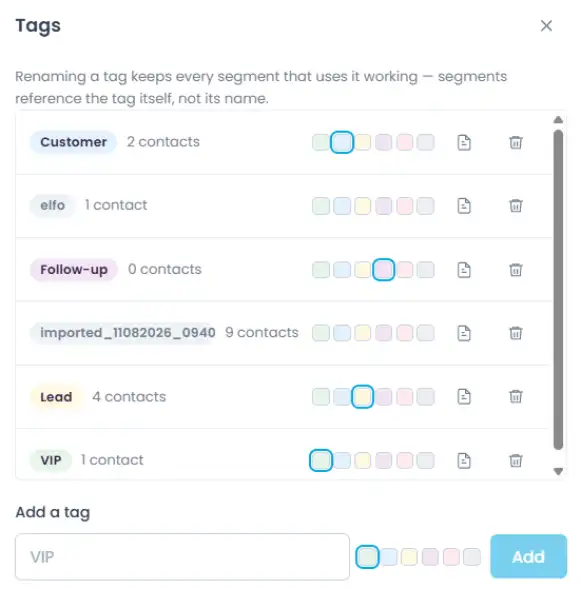
Renaming a tag keeps every segment that uses it working, since segments reference the tag itself, not its name. Renaming is always safe.
Deleting a tag permanently removes it from every contact that has it. This can’t be undone.
Contact fields
By default, a contact only has a WhatsApp number and Name. Everything else, like Status, Loan Amount, Due Date, Branch, or anything specific to your business,
is a custom field your team defines. Manage these from Fields in the toolbar.
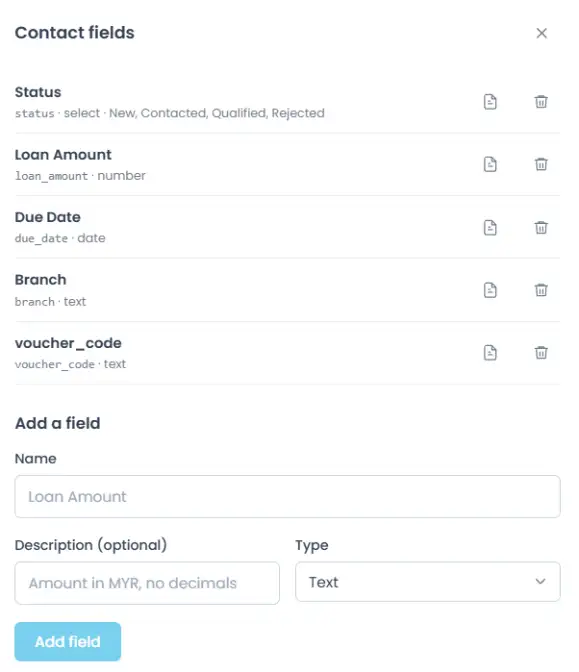
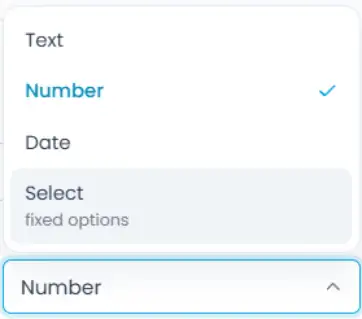
Each field has a Name, an optional Description (notes for your team on what to enter), and a Type: Text, Number, Date, or Select (a fixed list of options you define, e.g. Status: New, Contacted, Qualified, Rejected).
Deleting a field permanently removes its stored values from every contact, the contacts themselves stay, but their data for that field is gone. This can’t be undone.
Deleting or blocking a contact

Open a contact’s details (from Contacts or from within a conversation in Inbox) to delete or block them. Blocking stops them from messaging you; deleting removes their record entirely.
Adding a contact manually
Click + Add contact.
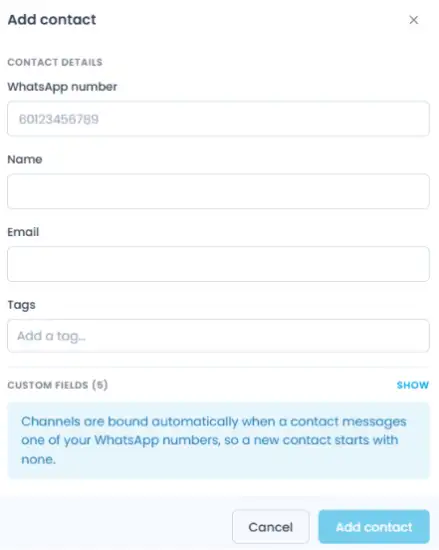
Only WhatsApp number is required, you can leave every other field (Name, Email, Tags, and any custom fields) blank and fill it in later.
Importing contacts
Click Import to bring in contacts from a CSV file.
Step 1: Purpose
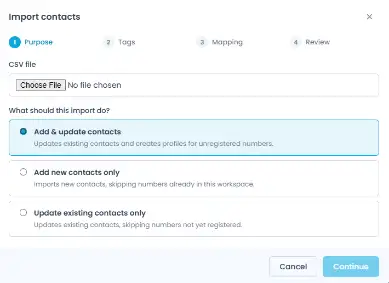
Upload your file, and choose what the import should do:
Add & update contacts: updates existing contacts and creates profiles for numbers that aren’t in your workspace yet.
Add new contacts only: imports new contacts, skipping any numbers already in your workspace.
Update existing contacts only: updates existing contacts, skipping any numbers not yet registered.
Importing contacts
Click Import to bring in contacts from a CSV file.
Step 1: Purpose
Upload your file, and choose what the import should do:
Add & update contacts: updates existing contacts and creates profiles for numbers that aren’t in your workspace yet.
Add new contacts only: imports new contacts, skipping any numbers already in your workspace.
Update existing contacts only: updates existing contacts, skipping any numbers not yet registered.
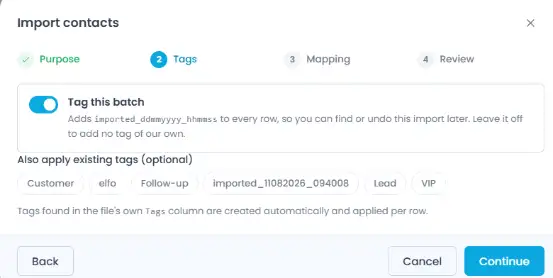
Step 2: Tags
Optionally tag this whole batch (so you can find or undo the import later), and apply any existing tags to every row.
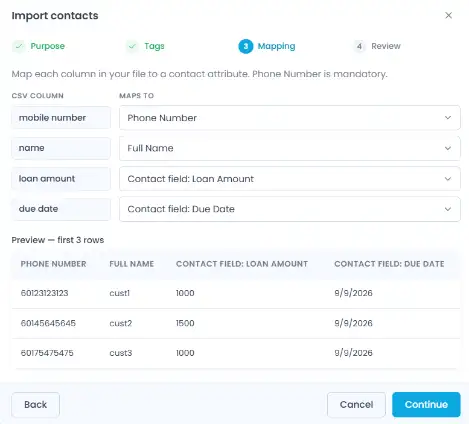
Step 3: Mapping
For each column in your file, choose which contact attribute it maps to (Phone Number, Full Name, Tags, or any custom field),
or mark it Not imported. A live preview shows the first few rows of your file so you can confirm the mapping looks right.
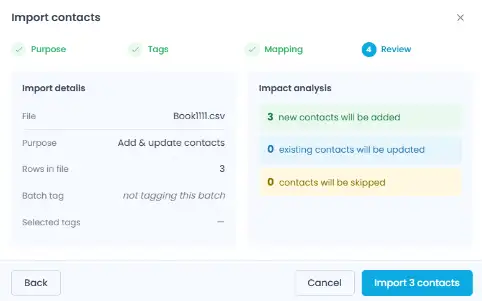
Step 4: Review
Check a summary before you commit, showing how many contacts will be added, updated, or skipped.
Exporting contacts
Click Export to download your contact list as a CSV file, with all contact details included.
Segments
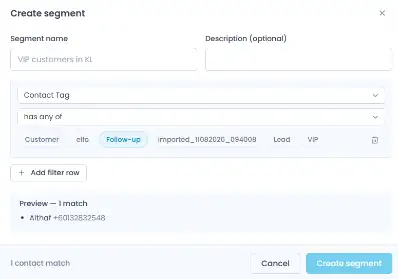
A segment is a saved filter, a way to group contacts that match certain conditions so you can target them later (e.g. for a broadcast).
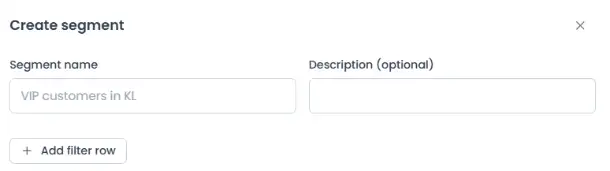
Step 1: Name your segment
Click + Segment, give it a name and an optional description.
Step 2: Add your filters
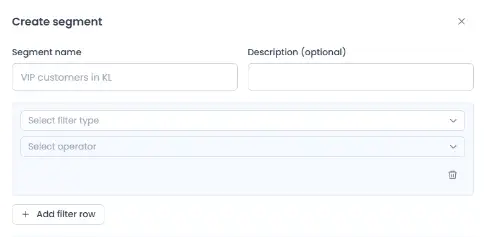
Click + Add filter row. Each row lets you filter by:
| Type | Operators | Value Input |
| Text | is equal to, is not equal to, contains, does not contain, exists, does not exist | Free text |
| Number | is equal to, is not equal to, greater than, less than, between, exists, does not exist | Number input (two, for “between”) |
| Date | is equal to, before, after, between, exists, does not exist | Date picker (a range picker for “between”) |
| Select | is equal to, is not equal to, has any of, has none of, exists, does not exist | Checklist of the field’s predefined options |
What each operator means:
is equal to / is not equal to: matches an exact value, or excludes it.
contains / does not contain: matches if the field’s text includes (or doesn’t include) what you type, useful for partial matches.
greater than / less than: matches numbers above or below a value.
before / after: matches dates earlier or later than a specific date.
between: matches values (numbers or dates) that fall within a range you set.
has any of / has all of / has none of: for a field or tag with multiple options checked, has any of matches contacts with at least one of them, has all of matches only if they have every one of them, and has none of matches contacts with none of them.
exists / does not exist: checks whether a contact has any value in that field at all, so these two don’t need a value input.
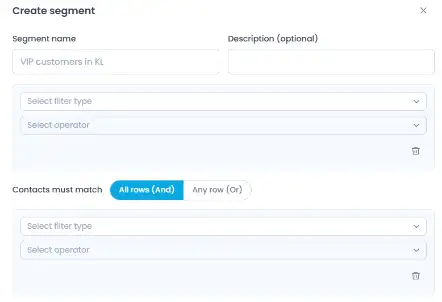
If you add a second filter row, a toggle appears so you can choose whether contacts need to match all rows or any row. With just one row, there’s nothing to combine, so the toggle stays hidden.
Step 3: Check the preview
As you build the filter, a live preview shows how many contacts match
Once a segment is saved, you can also export just its contacts, select the segment’s tab above the contact list, then click Export segment