Settings
- Home
- >
- Settings
Personal
Update your own account details.
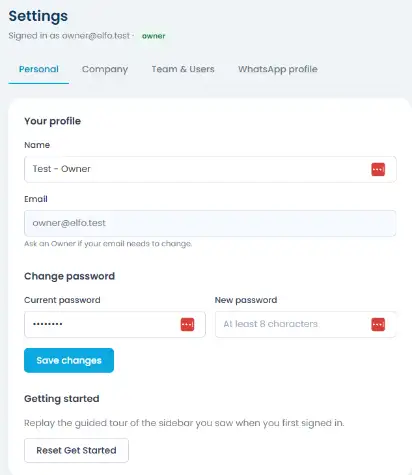
Name: editable.
Email: read-only here, if it needs to change, ask an Owner.
Change password: enter your current password and a new one (at least 8 characters).
Company
Set your workspace-wide company details.
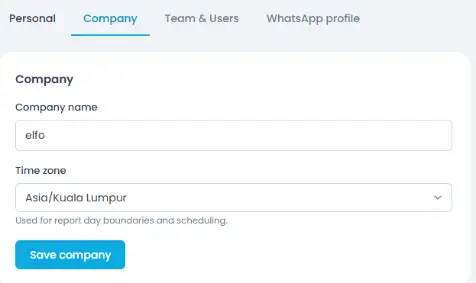
Company name
Time zone: used for report day boundaries and scheduling, so make sure it matches where your team actually operates.
Team & User
This is where Owners (and, in scope, Managers) manage who has access to the workspace.
Managing users
The user list shows everyone’s name, email, role, status (active or disabled), and when they last logged in.
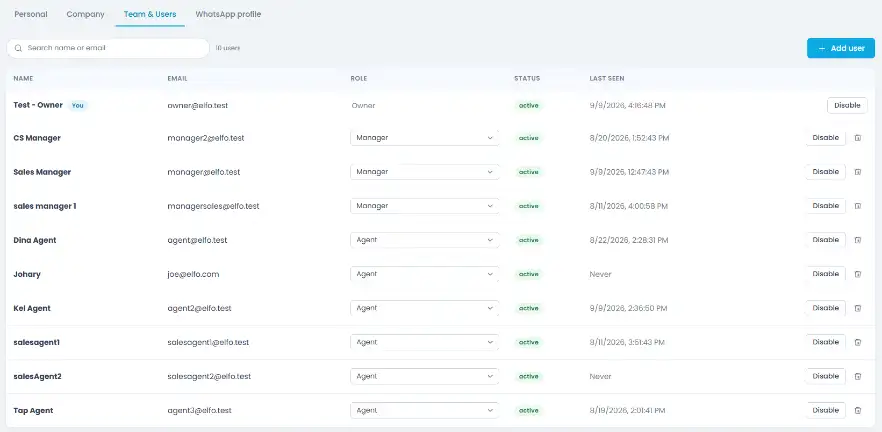
Click + Add user to invite someone by email.
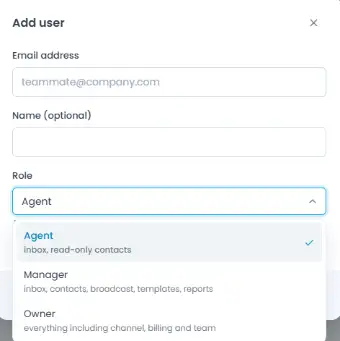
Use the Role dropdown next to their name to set them as Owner, Manager, or Agent. A workspace can have more than one Owner.
Click Disable to revoke a user’s access without deleting their record, or the trash icon to remove them entirely.
Managing teams
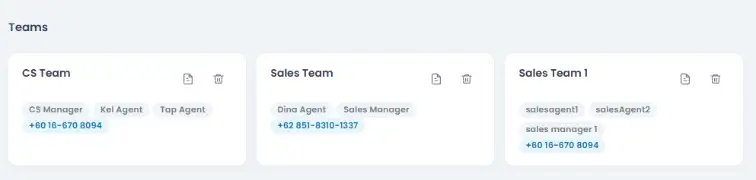
Further down, the Teams section lists every team as a card, showing its members and the WhatsApp channel(s) assigned to it.
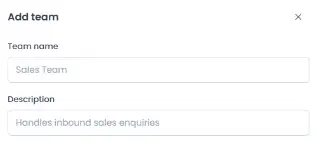
Step 1: Name your team
Click + Add team, then give it a Team name and an optional Description.
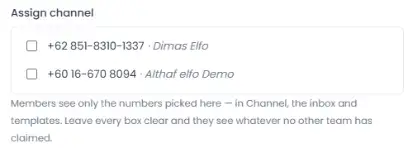
Step 2: Assign a channel
Pick which connected number(s) this team can see. Members only see the numbers checked here, across Channel, Inbox, and Templates.
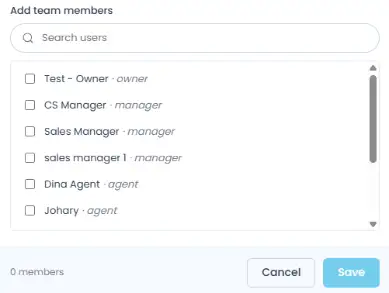
Step 3: Add members
Search and check the users who belong to this team and click Save
WhatsApp profile
Manage the public-facing profile customers see on WhatsApp.
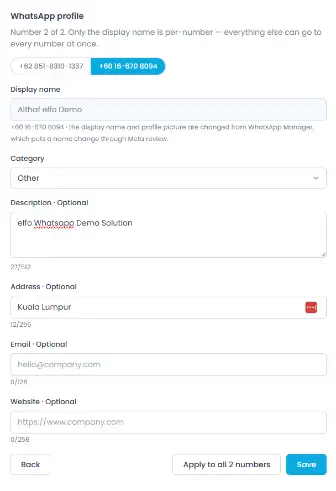
If your workspace has more than one connected number, use the selector at the top to switch between them.
Display name is per-number, changing it goes through WhatsApp Manager and requires Meta’s review, same as changing it directly on Meta’s side.
Category, Description, Address, Email, and Website are shared fields, they can apply to every number at once.
Use Apply to all numbers to push the same details everywhere, or Save to update just the number you’re currently viewing.