Inbox
- Home
- >
- Inbox
Getting started with Inbox
Inbox is where you handle conversations with your contacts. Most of what you’ll see here is inbound messages that come in through WhatsApp, but you can also start a new conversation yourself.
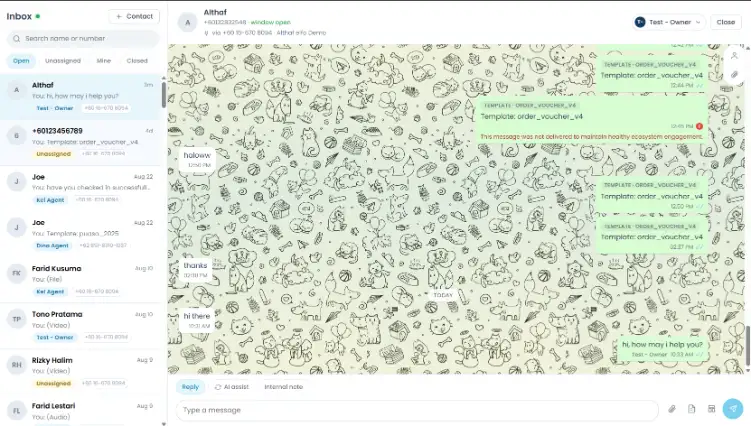
Every conversation shows up as a row in the conversation list, with the contact’s name, a preview of the last message, who it’s assigned to, and which channel it came in on.
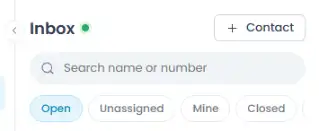
Use the tabs above the list to filter what you see:
Open: conversations that are still active
Unassigned: conversations no agent has picked up yet
Mine: conversations currently assigned to you
Closed: conversations you’ve closed
Replying to a conversation
Open a conversation and use the tabs above the message box:
Reply: send a regular message.
AI assist: get help polishing what you’re about to send.
Internal note: leave a note your team can see, but the contact can’t.
Using AI assist
Type a draft, pick a tone (Professional, Concise, Friendly, or Simple), and click Rewrite to have it reworded for you before you send it.

Using internal notes
Switch to the Internal note tab to leave a note on the conversation that only your team can see, it’s never sent to the contact on WhatsApp This is useful for leaving context for whoever picks up the conversation next, flagging something that needs follow-up, or coordinating with a teammate without leaving the thread Internal notes show up inline in the conversation history, but styled differently from regular messages so it’s clear they’re internal-only.

Next to the message box, you’ll also find:
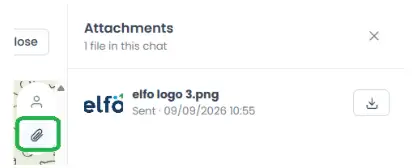
Attachment (paperclip icon): send a file, image, or document along with your message.
Template: send an approved message template. You’ll need this once the 24-hour conversation window closes, WhatsApp only allows template messages outside that window, so this is how you re-open the conversation.
Assigning conversations
Click the agent badge in the top right of a conversation to reassign it.
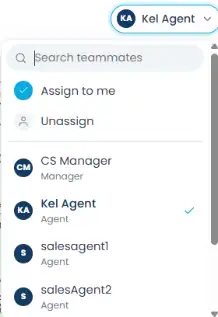
You can search for a teammate, use Assign to me, or Unassign to send it back to the unassigned queue. Only teammates with access to that conversation’s channel show up in the list.
Starting a new conversation
Click + Contact to add a new contact and, optionally, start a conversation with them right away.
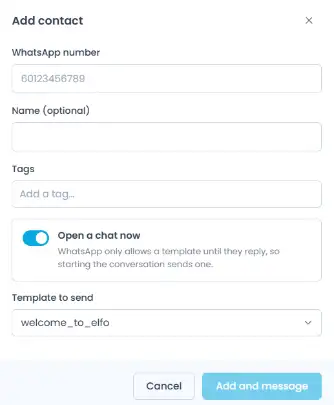
WhatsApp number and Name (optional): the contact’s basic details.
Tags: apply any existing tags to this contact.
Open a chat now: when this is on, starting the conversation sends a template message. WhatsApp only lets businesses message a contact who hasn’t messaged them first if they use an approved template, so you’ll need to pick one from Template to send.
Contact details and attachments
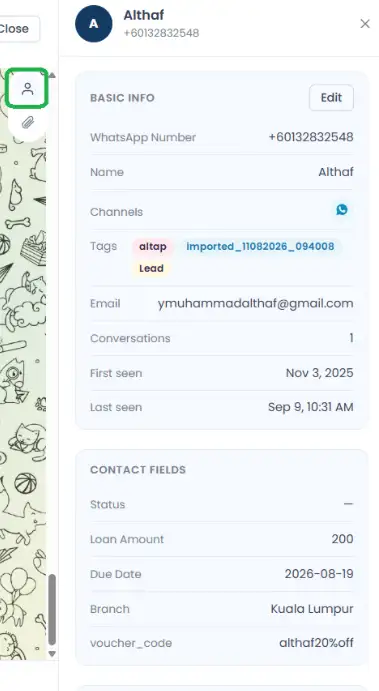
Click a contact’s name inside a conversation to open their details on the right.
Contact details
WhatsApp number, name, tags, email, first/last seen, conversation count, and any custom fields your workspace has added (e.g. Status, Loan Amount, or Branch).
By default a contact only has WhatsApp number and Name, everything else is a custom field your team defines. You can edit any of these details directly from this panel, no need to leave the conversation and go to the Contacts page.
Attachments
Every file shared in that conversation, with a download button for each.